Access Complete List of Webhook Properties
A complete list of webhook properties, or keywords, that can be included in custom webhooks can be found in the API documentation.
- Open the API documentation. See the API Documentation.
- Click Data Types and search for one of the following:
- Work Order
- WorkOrderBase
- AttachmentBase
- CommentRecord
- EquipmentCost
- WorkOrderLaborCost
- MaterialCost
- WoTask
- Service Request
- RequestBase
- AttachmentBase
- CommentRecord
- CustomerCallBase
- RequestLaborCost
- Inspection
- InspectionBase
- AttachmentBase
- CommentRecord
- InspectionEquipmentCost
- InspectionLaborCost
- Contract
- ContractBase
- AttachmentBase
- Comment Record
- ContractSubContractor
- ContractSubContractor
- Project
- ProjectBase
- AttachmentBase
- CommentRecord
- Case
- CaObjectItemBase
- CaAddressItemBase
- CaFeesItemBase
- CARelDocsItemBase
- CaTaskItemBase
- CommentRecord
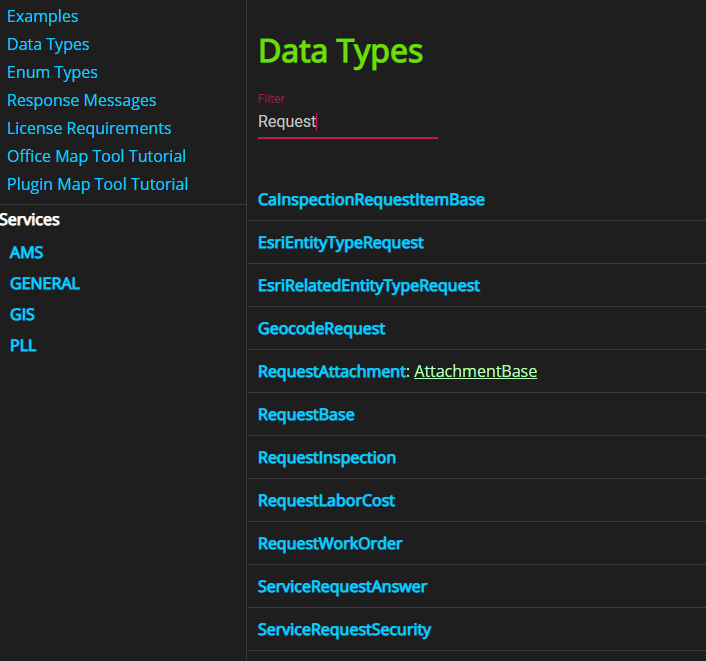
- Select the desired service to see a list of parameters.
Trimble Unity allows you to control webhook processing through the new WebHookBackgroundWorkerProcess enumeration. This addresses the absence of a built-in message queue service for delayed webhooks, allowing you to configure how urgent and delayed webhook messages are handled.
- Click Enum Types.
- Search for WebHookBackgroundWorkerProcess.
The following options are available with this enum:
- None: This is the default because it replicates the legacy behavior. Any client having implemented a message queue to handle delayed messages see no impacts with this change.
- Urgent messages are processed synchronously.
- Delayed messages are queued (but not processed, as no message queue service is provided).
- Urgent:
- Urgent messages are processed in the background.
- Delayed messages are queued (but not processed, as no message queue service is provided).
- Delayed:
- Urgent messages are processed synchronously.
- Delayed messages are processed in the background.
- All:
- All messages (urgent and delayed) are processed in the background.
Many keywords used to build custom webhooks can also be found in another location in the API documentation.
- Click Enum Types.
- Search for WebHookCustomPacketTemplateFlag.
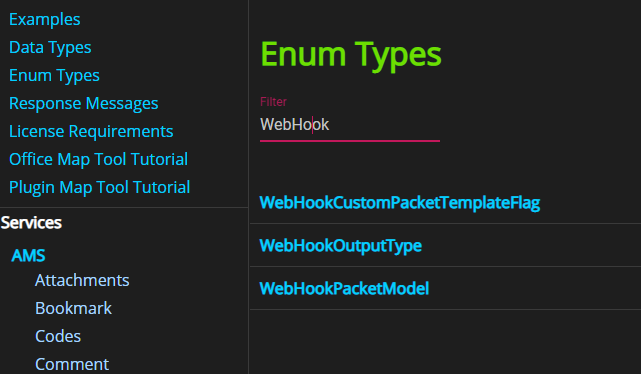
- Select WebHookCustomPacketTemplateFlag to view a list of parameters.
For action events and action templates dealing with related records (for example, Work Order Labor, Work Order Tasks, Comments) using Related in front of most existing keywords allows you to access values from the main record.
Some examples include:
- Inspection created from a service request, work order, or parent inspection. {{RelatedInspectionId}} populates the parent inspection ID.
- Work order created from a service request, inspection, case, parent work order, and cycle work order. {{RelatedWorkOrderId}} populates the work order ID from the source work order.
- Work activities created from a service request can use {{RelatedRequestId}} to populate the service request ID from the source service request.
- Work order labor can access the WorkOrder information on Add and Delete labor. {{RelatedStatus}} populates the Status from the work order.
- Work order task can access the WorkOrder information on Add and Delete task.
- Comments have access to the related activity. For example, WO Comment can access WorkOrder information.
- Case Task can access Case Object information on Case Task Add.

