Access the Audit Logs for Admin
You can view changes made for employees, contractors, custom data fields, GIS errors, preferences, work order templates, inspection templates, and service request templates in Admin. Any changes made on the Contractor Setup page are also tracked. Employee custom fields are logged and are accessed through the Custom Data Fields log type.
 IMPORTANT: Changes cannot be tracked for the Asset and Map or Security tabs on an inspection template.
- Click Configure and click Audit.
- Click the Audit Logs tab.
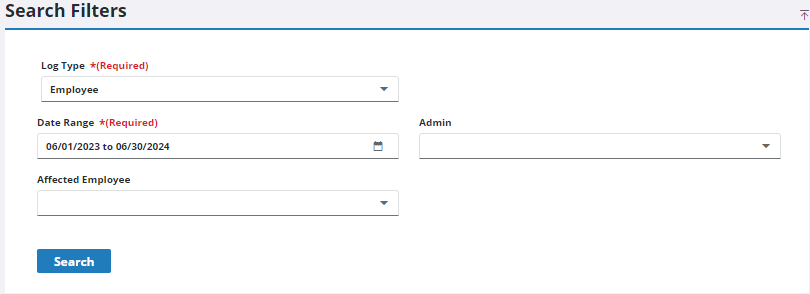
- Select the Log Type.
- Select the date range you'd like to view changes for.
- If desired, select an Admin or a specific Affected Employee that you'd like to view the changes of.
- Click Search.
The date the change was made, the Admin who made the edit, the Old Value, and the New Value appear in the Results panel below.
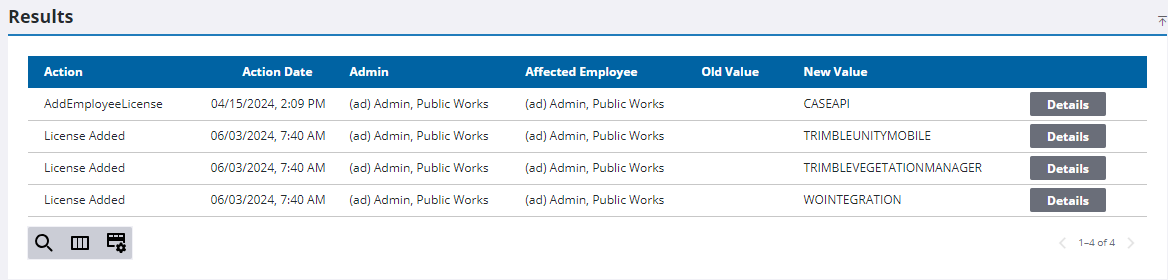
- Click Details to view more information for each line item.
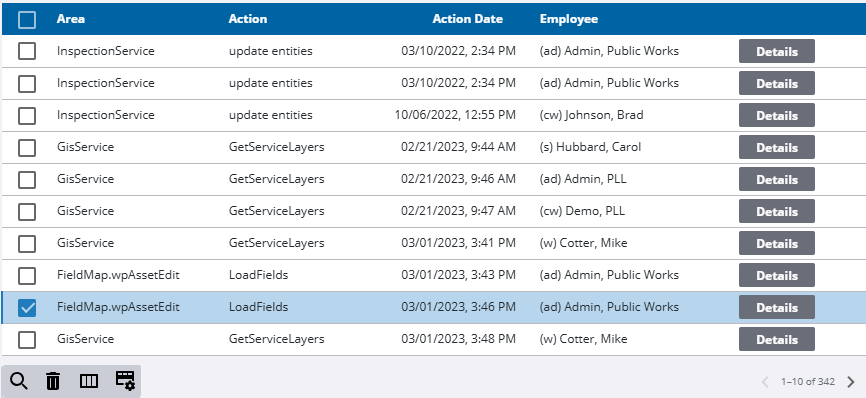
If Action Log is selected as the Log Type, you can select a record and remove it. The Action Log is different than audit logging which tracks fields an administrator has told it to; the Action Log tracks GIS actions and the messages they incur. Only administrators or employees that have access to this page can delete records.
- Select a record and click Delete selected records.