Clone a Country, State, or Zip Code
Country code, state, and zip code entries may be cloned.
|
|
 PREREQUISITES:
- From the home page, click Permitting and click Country Setup.
 Country Code
- Click the Country tab.
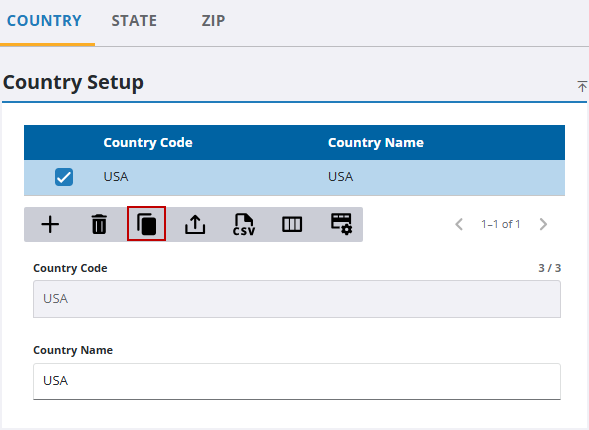
- On the Country Setup panel, select the entry you want to clone and click Clone selected items.
 TIP: You can filter the list of records displayed. See Filter Records for more information.
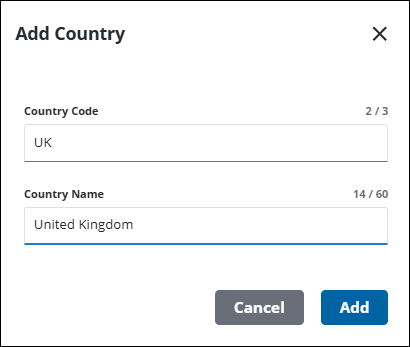
- On the Add Country panel, enter a unique name in the Country Code field and update the Country Name as desired.
- Click Add.
State
- Click the State tab.
- On the State Setup panel, select the entry you want to clone and click Clone selected items.
TIP: You can filter the list of records displayed. See Filter Records for more information.
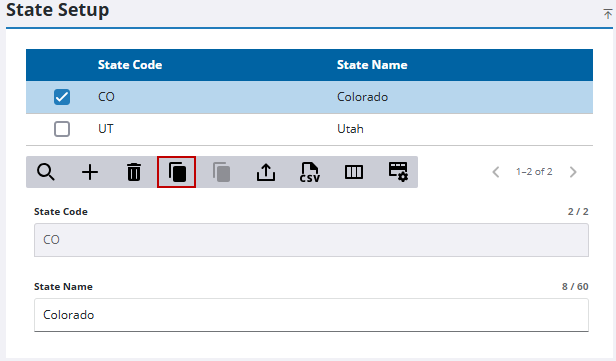
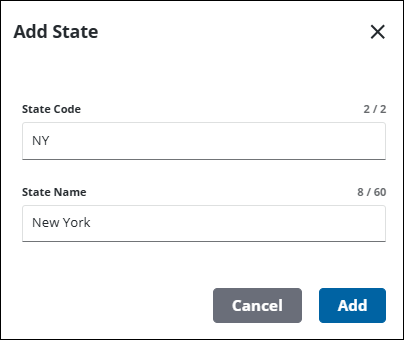
- On the Add State panel, enter a unique name in the State Code field and update the State Name field as desired.
- Click Add.
Zip Code
- Click the Zip tab.
- On the Zip Setup panel, select the entry you want to clone and click Clone selected items.
TIP: You can filter the list of records displayed. See Filter Records for more information.
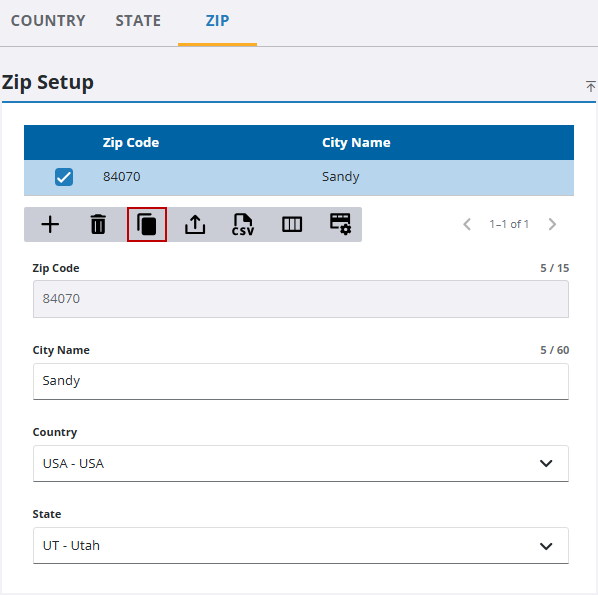
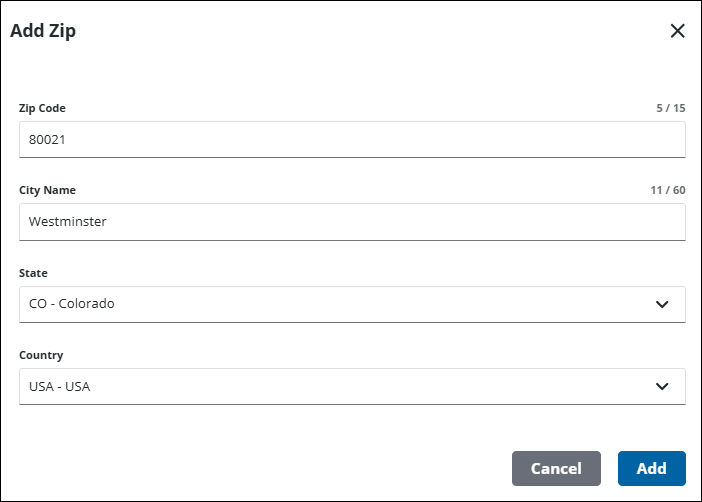
- On the Add Zip panel, update the Zip Code, City Name, State Code, and Country Code fields as desired.
- Click Add.