Add or Edit a Customer Account
Customer account information can be set up so that service request fields are automatically populated with the caller's information.
|
|
 PREREQUISITES:
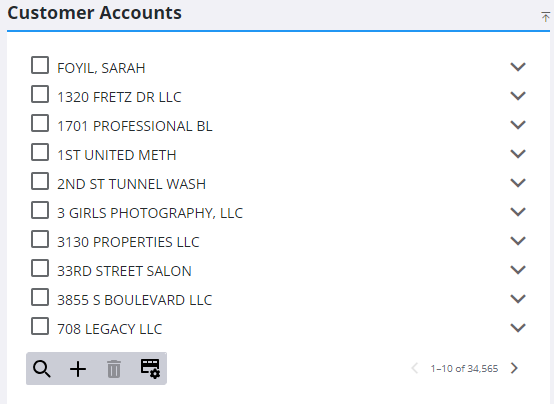
- From the home page, click Admin and click Customer Accounts.
Existing customer accounts are shown in the Customer Accounts panel. You can filter the list by typing the first few letters of the customer name or the first few digits of the account number in the search box.
- To add a new customer account, click Add.
- Enter the customer's Account Number and select the Account Type from the drop-down list.
- Enter the customer's contact information and click Add.
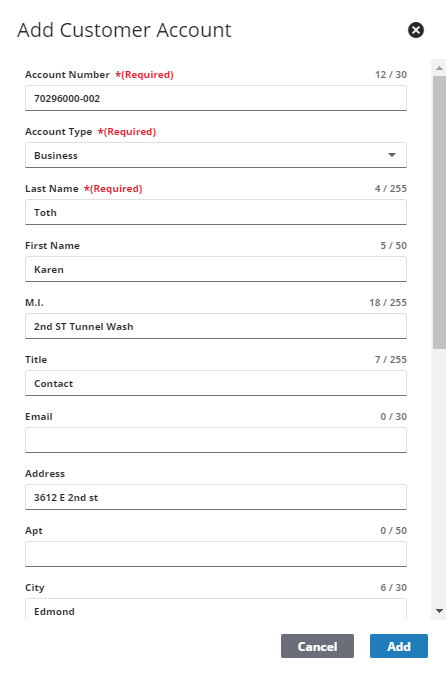
The new customer account displays in the Customer Accounts panel.
- To edit a customer account, select it and make the desired changes on the Details panel.
 NOTE: Changes are automatically saved and verified by a notification at the bottom of the page.

