Add Employees to Crew Relates
The Crew Relates tab is used to configure any employee relates for crews. To populate the Submit To Crew drop-down list in Respond, employees need to be added to the crew relates for work orders and inspections.
- From the home page, click Admin and click Employee Relates.
- Click the Crew Relates tab.
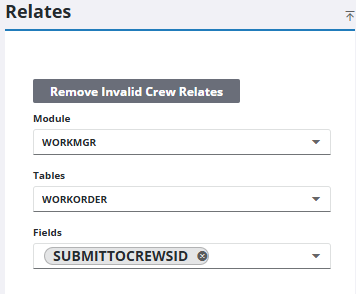
- Select the WORKMGR from the Module drop-down list.
- Select either Work Order or Inspection from the Tables drop-down list.
- Select the Submit To Crew SID from the Fields drop-down list.
The Assigned Members panel shows crews already assigned to the selected field(s). You can filter the list by clicking Filter records and entering the first few letters of the crew.
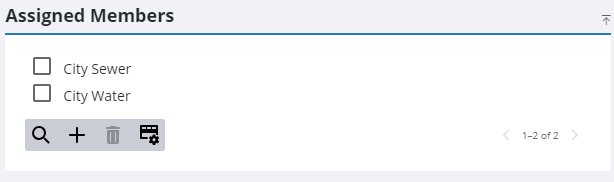
- To assign more crews to the selected fields, click Add record on the Assigned Members panel.
 TIP: You can filter the list of records displayed. See Filter Records for more information.
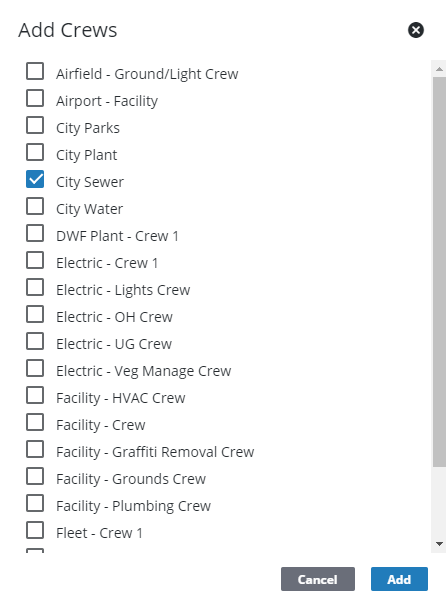
- Select the crew(s) from the list.
- Click Add.
TIP: To remove a crew from the list, select the crew and click Delete selected records.
 NOTE: Your changes are automatically saved, and the changes are verified by a notification at the bottom of the page.

