Configure Event Images
Event images can be added or removed.
- From the home page, click GIS and click Event Images.
- Click the Event Images tab.
All images already configured appear in the Event Images panel.
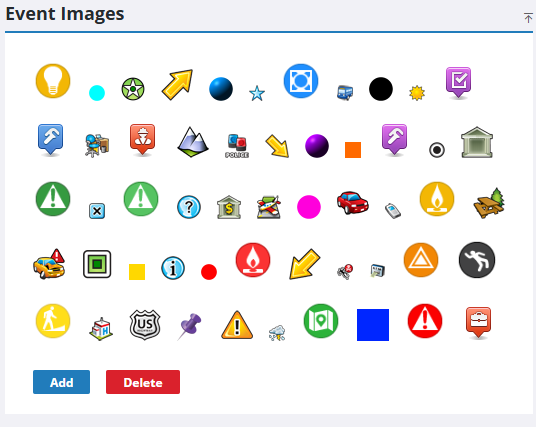
- Click Add on the Event Images panel.
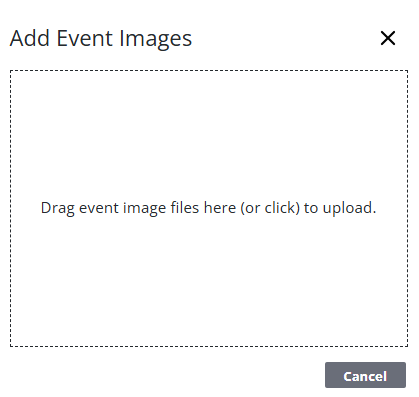
- Drag the event image file(s) into the box or click to browse to the file(s) location to upload.
The image cannot be greater than 100 kilobytes.
- To remove an event image, select it and click Delete.
Once the image is added, you can go to the eURL Configuration page in Respond and select that image on the Image tab. See Change Marker Symbol the Respond Guide for Trimble Unity Maintain and Trimble Unity Permit for more information.

