Edit an Expiration Type
Existing expiration types may be updated or changed at any time without having to create entirely new expiration types to replace them.
- From the home page, click Permitting and click Expiration Types.
 TIP: You can filter the list of records displayed. See Filter Records for more information.
- On the Expiration Types panel, select an existing expiration type.
 NOTE: Multiple records can be added or edited at the same time. See Perform a Bulk Export or Bulk Import for more information.
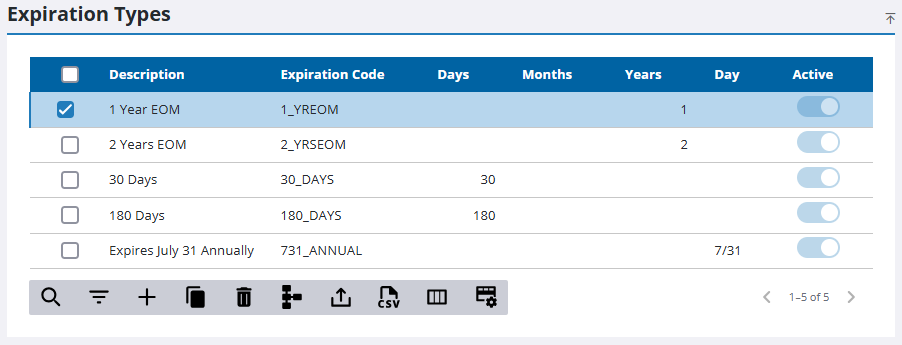
NOTE: Multiple expiration types can't be edited at once if some are active and some are inactive.
The expiration type automatically loads in the Details panel.
- Make any desired changes on the Details panel.
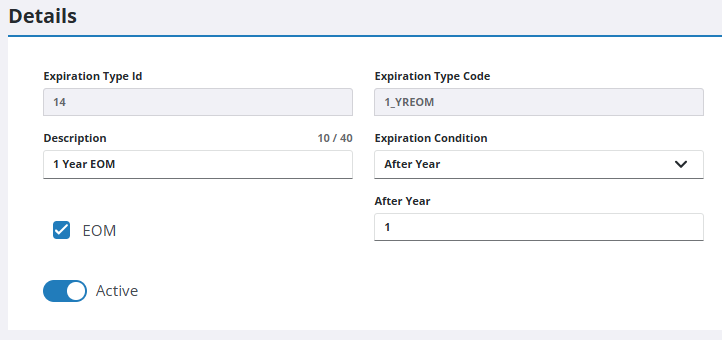
NOTE: Your changes are automatically saved, and the changes are verified by a notification at the bottom of the page.

