Add a Fee Map Layer
|
|
 PREREQUISITES:
 NOTE: Multiple records can be added or edited at the same time. See Perform a Bulk Export or Bulk Import for more information.
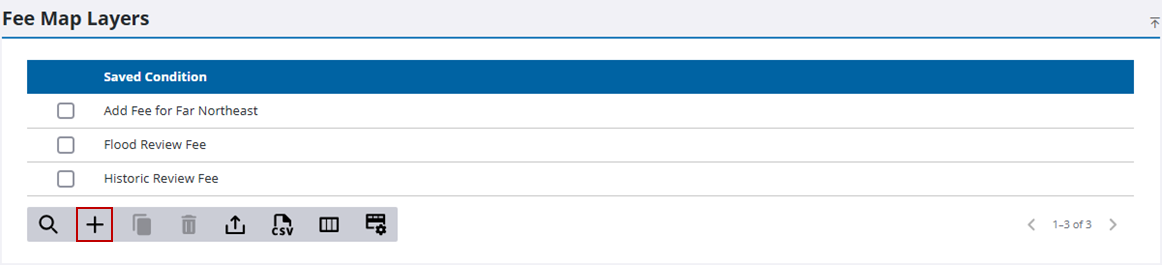
- From the home page, click Permitting and click Fee Map Layers.
- On the Fee Map Layers panel, click Add record.
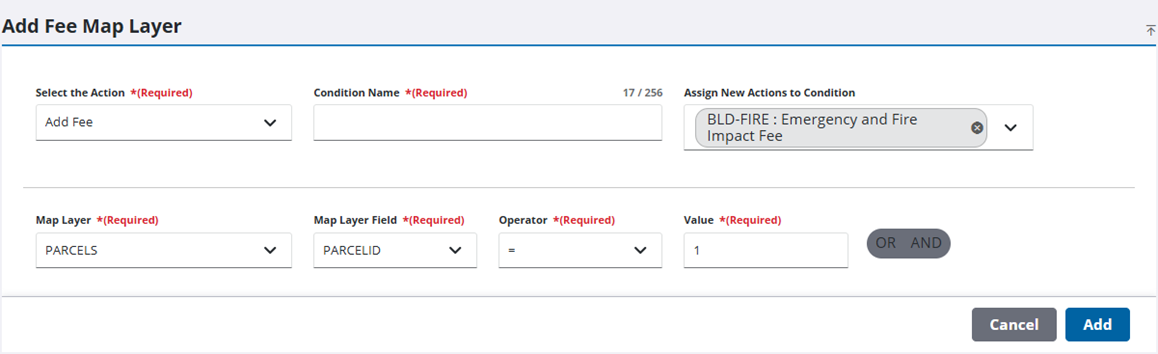
- On the Add Fee Map Layer panel, select the action you want to occur from the Select the Action drop-down list and enter a name or description for the condition in the Condition Name field. This populates the Map Layer drop-down list with a selection of database fields associated with the selected action.
- Use the Map Layer Field drop-down list to select the field that will trigger the condition.
The Operator field will populate once you have selected a field, and each field may have different operators associated with it.
- Select an operator from the available options in the Operator drop-down list.
- Enter a value in the Value field.
- If needed, select the AND or OR option to add additional criteria to the condition and complete the required fields.
- Click Add.
 IMPORTANT: The fees you wish to add or remove from the workflow based on
the selected conditions must be included in the fees assigned to the case template. This is
because the fee needs a milestone number so the system knows where to put it in the
workflow when the condition parameters are met. See Workflows for
more information.
IMPORTANT: The fees you wish to add or remove from the workflow based on
the selected conditions must be included in the fees assigned to the case template. This is
because the fee needs a milestone number so the system knows where to put it in the
workflow when the condition parameters are met. See Workflows for
more information.

