Configure a List Field
Lists allow you to group other data types together. The list field is the parent and any fields added to the list are child fields.
- From the Fields section, click and drag the List field into a group.
Once it is added, the Edit section opens for the list.
- Enter a name for the list in the Question field.
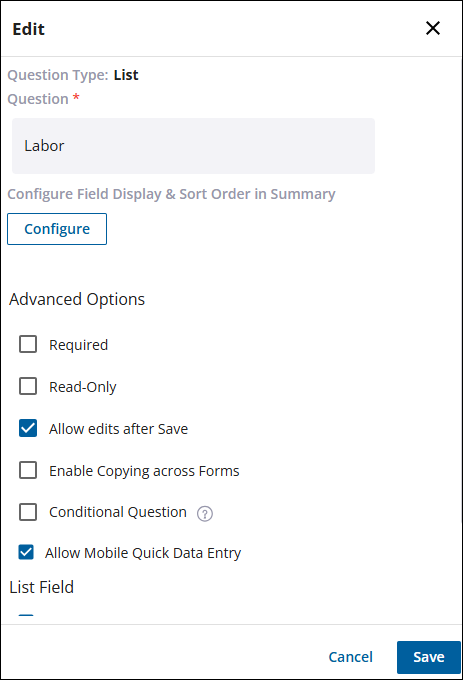
- Select the check boxes for the Advanced Options you want for the field.
Three additional options are available for lists:
- Allow Adding List Entries: Allows users to add list entries in the Trimble Unity Field app.
- Allow Deletion of List Entries: Allows users to delete list entries in the Trimble Unity Field app
- Allow Editing List Entries: Allows users to edit list entries in the Trimble Unity Field app.
- Click Save.
Once the list is saved, you can add other fields to it. These are called child fields.
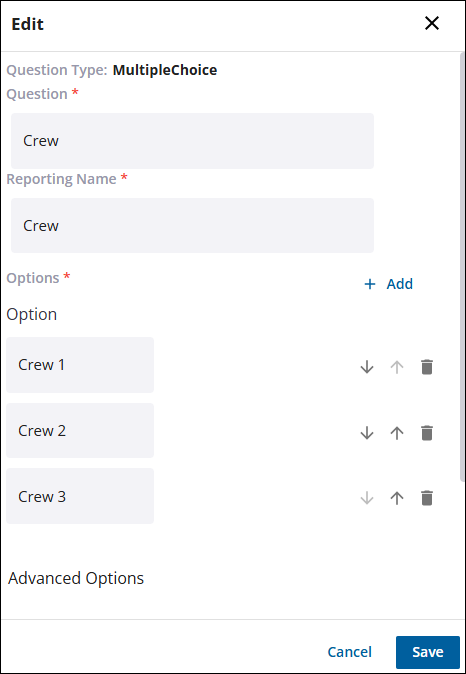
- Drag and drop a field into the list, for example Multiple Choice.
Once it is added, the Edit section opens for the new field.
- Enter a name for the child field in the Question field.
- Select the check boxes for the Advanced Options you want for the field.
- Click Save.
- Repeat these steps as needed to add all of the child fields to the list.
Once child fields have been added to the list, you can configure the settings for the field display and sort order.
- Click the Edit Field icon to the right of the list under the Actions section.
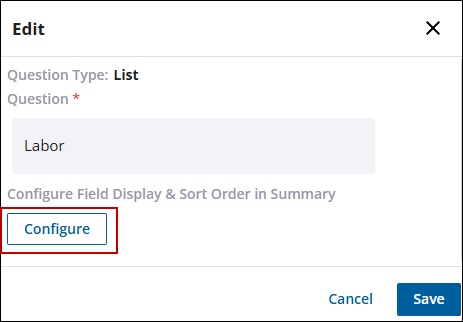
- In the Edit section, click Configure.
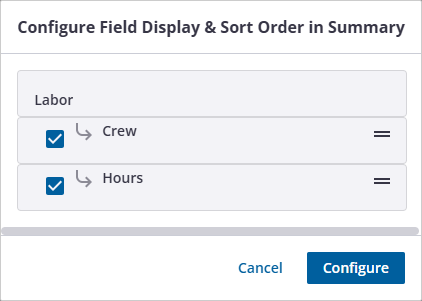
- Selected fields are be shown in the summary view. Clear the check box for any fields that you do not want to include.
- To change the order of the fields in the summary, click the reorder icon on the right and drag that field to the desired location.
- Click Configure to save the changes.