Add an Alias
You can add an alias to assets, features, or objects in one of the following ways:
 Add an Alias by Feature, Objects, or Others
- Select either the Features, Objects, or Others options to view a list of assets listed by Code and Description.
- Features: Lists GIS features that have been defined.
- Objects: Lists GIS objects that have been defined.
- Others: Lists other assets that have been defined.
 TIP: You can filter the list of records displayed. See Filter Records for more information.
- Select an item to view its aliases.
The Configuration panel displays all of the asset's aliases.
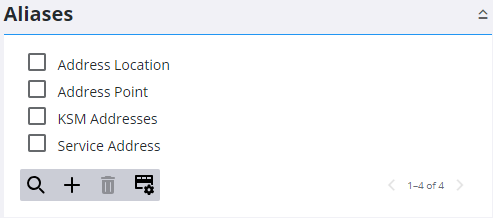
- To add a new alias for the selected asset, click Add record, enter the Alias, and click Add.
Add an Alias by Service
Use the Services option to view a list of services in the database. When a service is selected, the Options panel displays a list of layers that are a part of the service and the asset that each layer resolves to (if any).
- Select Services.
TIP: You can filter the list of records displayed. See Filter Records for more information.
- Select a service from the Services drop-down list.
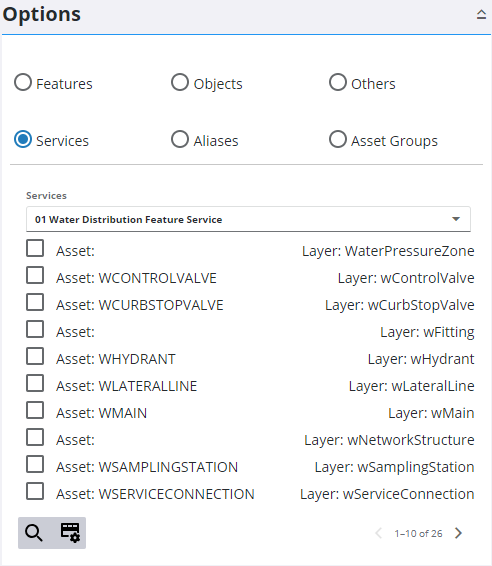
- Select an Asset and Layer.
The Configuration panel displays all of the asset's aliases as well as the Layer Asset the asset is associated with.
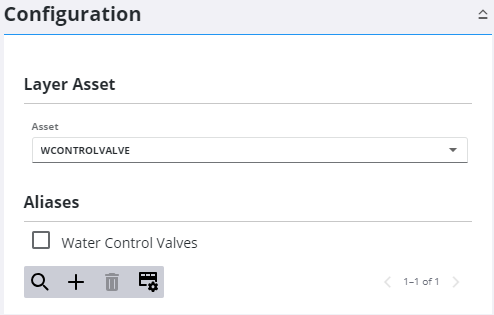
- To add a new alias for the selected asset, click Add record, enter the Alias, and click Add.
- To select a different asset for the selected layer, select a new asset from the Select asset for this layer drop-down list.

