Add or Edit Guided Access
By adding guided access, administrators help to clarify and streamline the case creation process for end users in Public Access.
|
|
 PREREQUISITES:
 NOTE: Multiple records can be added or edited at the same time. See Perform a Bulk Export or Bulk Import for more information.
- From the home page, click Permitting and click Guided Access.
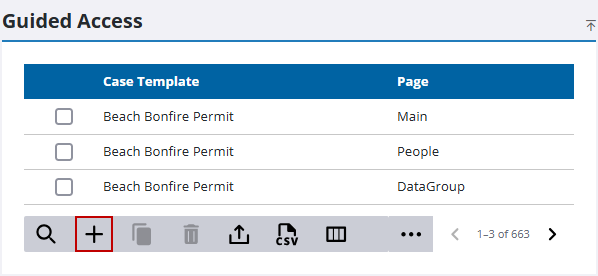
- On the Guided Access panel, click Add record.
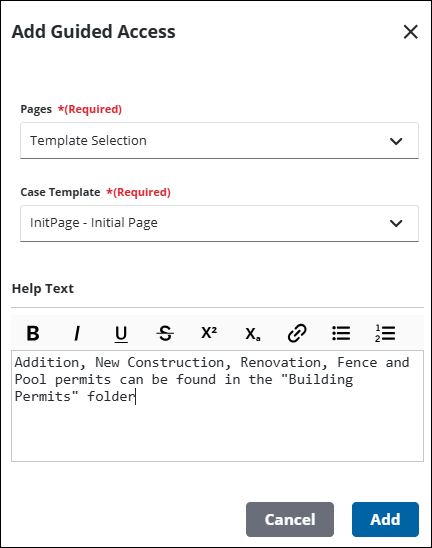
- On the Add Guided Access panel, use the Pages drop-down list to select the specific page of the case template the guided access appears on.
- Use the Case Template drop-down list to select the case type the guided access appears on.
|
|
- In the Help Text field, enter brief but clear instructions on what users should do on the page in question.
 TIP: You can filter the list of records displayed. See Filter Records for more information.
- To edit an existing comment, select the guided access profile you want to edit.
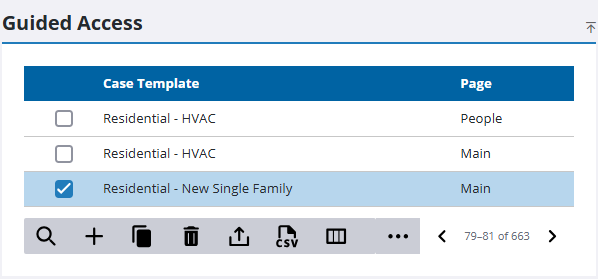
The guided access profile automatically loads in the Guided Access Detail panel.
- Make any changes you want to the record on this panel.
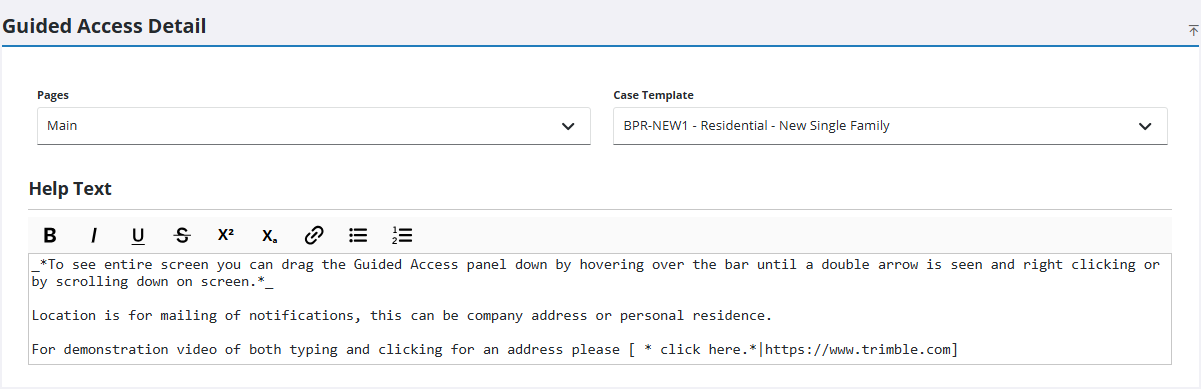
NOTE: Your changes are automatically saved, and the changes are verified by a notification at the bottom of the page.

