Schedule a Hearing
This section will discuss how to schedule a hearing.
|
|
 PREREQUISITES:
- From the home page, click Permitting and click Hearing Types.
 TIP: You can filter the list of records displayed. See Filter Records for more information.
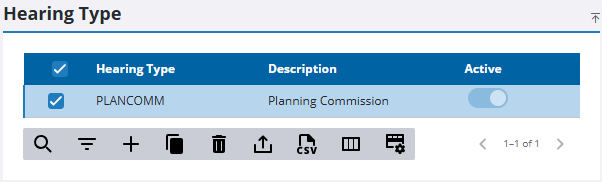
- On the Hearing Type panel, select the hearing type you want to schedule.
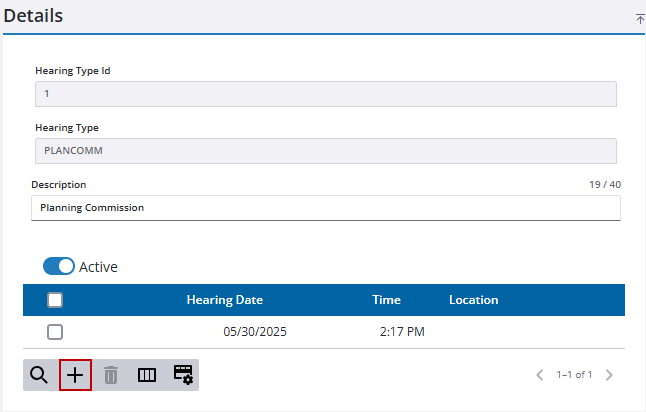
- On the Details panel, click Add hearing schedule to schedule a new hearing.
 IMPORTANT: On the Add Hearing Schedule panel, if the values you enter in the Hearing Date and Hearing Time fields match the values of an existing hearing, Add will be inactive, and you won't be able to add the hearing. To activate Add, enter a date and time value pair that doesn't conflict with an existing hearing.
- On the Add Hearing Schedule panel, click the calendar icon in the Hearing Date field to select a date.
- Click the clock icon in the Hearing Time field to select a time for the hearing.
- Enter the details of the location for the hearing, including address and floor, room, or suite number, in the Location field.
- Click Add or Add and New to add the hearing type schedule and create another one.


