Search To Query
Search definition saved searches created in Cityworks Office can be converted to queries using the Search To Query page.
|
|
 PREREQUISITES:
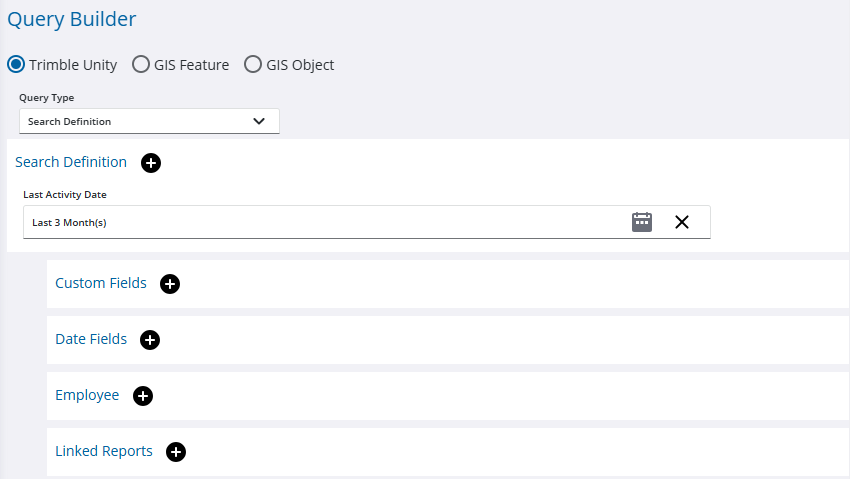
To help identify which search definitions are used and should be converted for Respond, use the Search Definition query type and the Last Activity Date search field to narrow down which searches have been used in a defined date range. The following image shows a query configured to find search definitions used in the last three months:
- From the home page, click Admin and click Search to Query.
- Select a Search Definition Saved Query from the drop-down list.
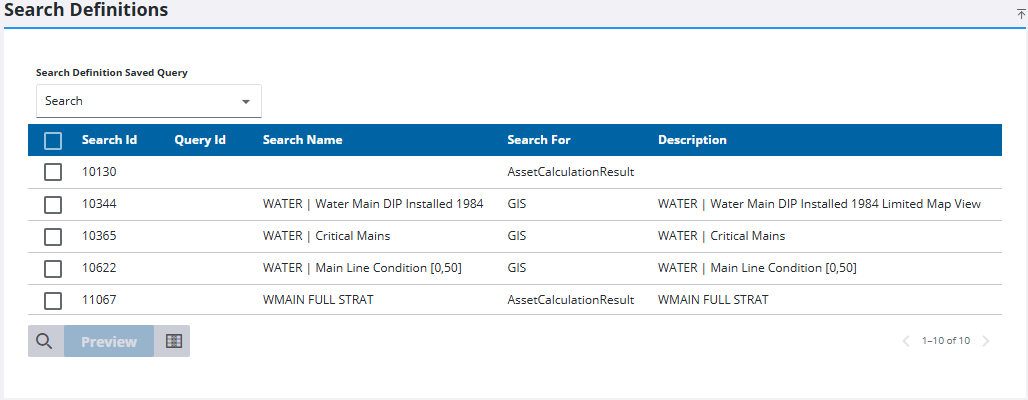
- Select one or more search definitions from the list and click Preview to see how they can be converted to queries.
The query syntax appears in the Search To Query Preview Results panel.

- Select it and click Compare to make sure the query based on the search definition is pulling in the same number of items.
- Click Convert if it looks the same.
Optionally, you can click Copy Query to Clipboard to copy the syntax and paste it into a new query on the Query Editor page instead. This allows you to adjust the query. See Add a Query for more information.
- On the Convert Saved Searches to Queries panel, select the Add Eurl to new Queries check box to keep an event layer if needed.
- Click Convert.

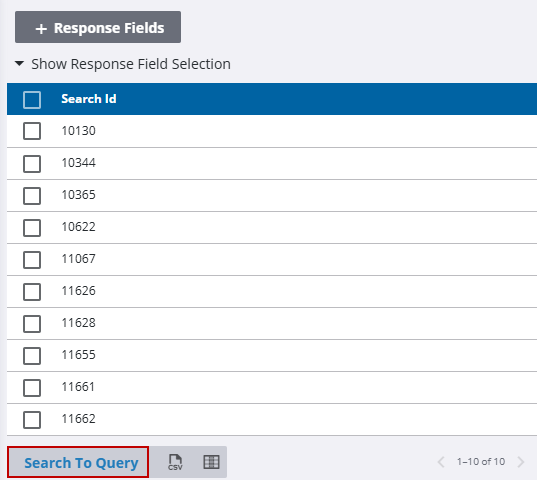
Alternatively, from the Query Editor in Respond, start creating a new Search Definition query, select the desired results, and click Search To Query to generate a query based on them.