Add or Edit a Branch Answer
 TIP: You can filter the list of records displayed. See Filter Records for more information.
- Select a service request template from the Work Activity Templates panel.
- Click the Questions tab on the Template Details panel.
- Expand a question.
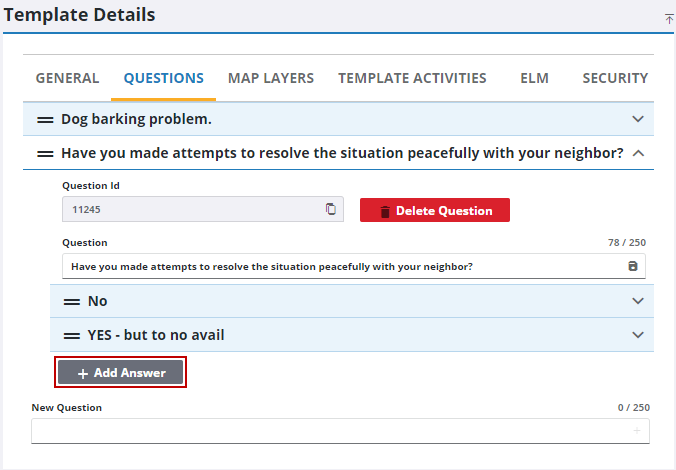
Any existing answers for the question display.
- Click Add Answer to add an answer to the selected question.
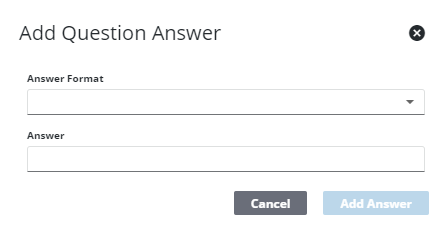
- Select the Answer Format, enter the Answer (if required), and click Add Answer.
- Select the answer and enter the answer details, including the Next Question that follows based on this answer.
For an explanation of fields in the answer details section, see Questions Tab Fields.
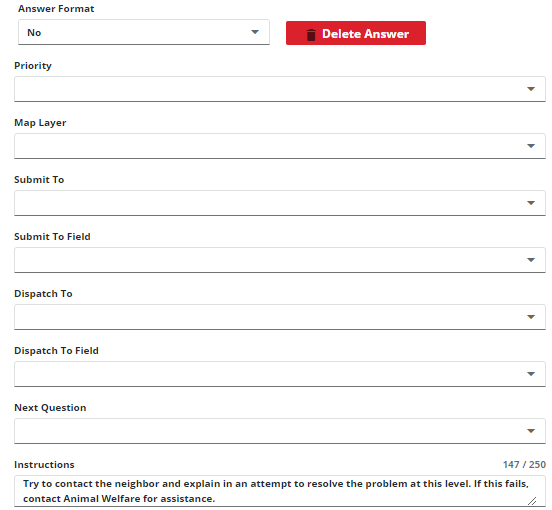
- To edit an answer, select an existing answer to view and change the answer details.
You can rearrange the answers by clicking the reorder icon and dragging up or down to determine how they display on the service request.
 NOTE: Changes are automatically saved and verified by a notification at the bottom of the page.
For specific instructions on how to set up answers for map layers, the dispatch to fields, or submit to fields, see Configure Answers to Populate Dispatch or Submit To Fields.

