Edit Forms
Forms can be edited.
|
|
 PREREQUISITES:
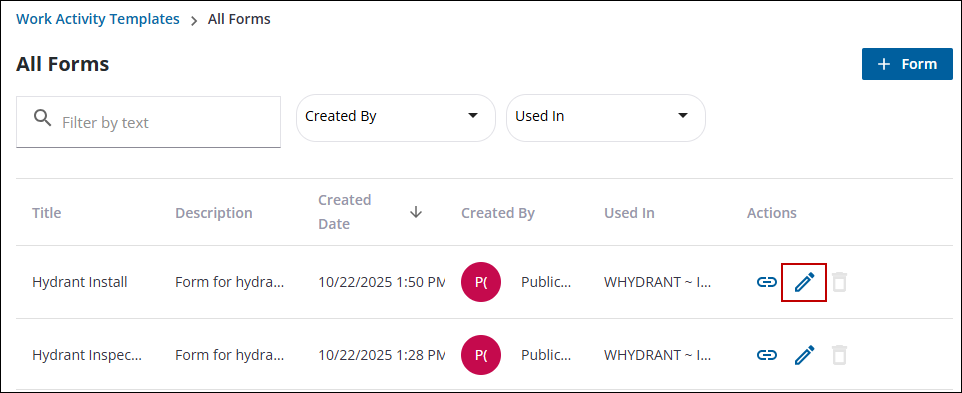
- From the home page, click Configure and click All Forms.
 TIP: Alternatively, open the Work Activity Templates page and click the All Forms tab.
- Search for the desired form. See Search Forms for more information.
- Click the Edit Form icon on the right of the form you want to edit.
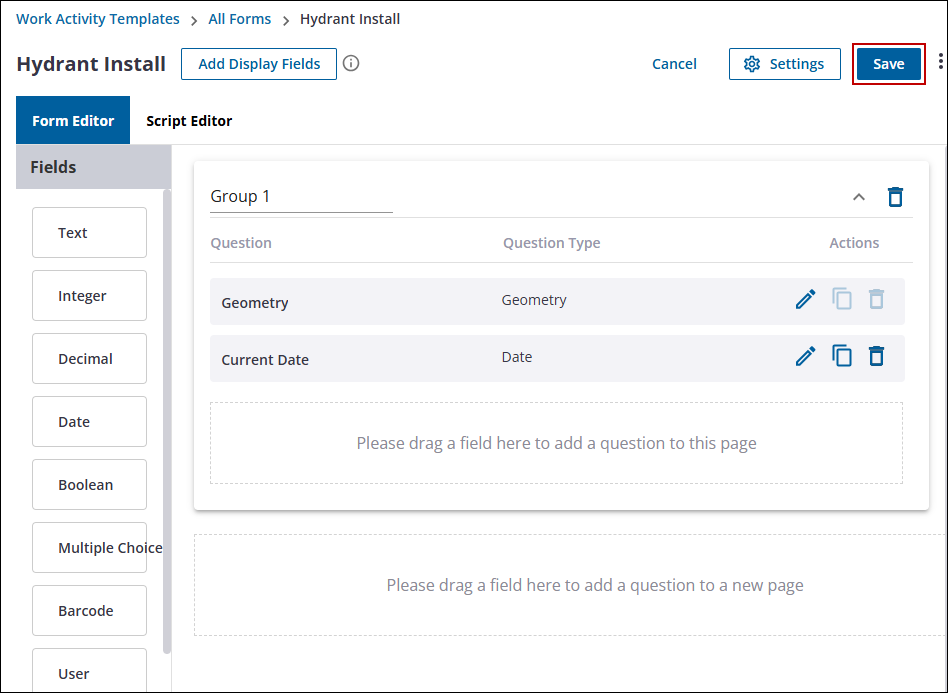
- Click Settings in the upper-right corner to edit the Form Settings.
- Make the necessary changes and click Save.
- Next, make any desired changes to the form itself, like adding new fields to the form.
- To edit existing fields, click the Edit Field icon under Actions to the right of the field.
- To copy a field, click the Copy Field icon under Actions to the right of the field.
- To remove a field, click the Delete Field icon under Actions to the right of the field.
- To remove an entire group, click the Delete Group icon in the upper-right corner of a group.
- Click Save.