Remove a Sub License
A sub license may need to be removed from the system from time to time.
|
|
 PREREQUISITES:
 IMPORTANT: As a best practice, do not remove a sub license if there are any records associated with it. Instead, make the sub license inactive to preserve the historical data associated with the sub license.
- From the home page, click Permitting and click Sub Licenses.
 TIP: You can filter the list of records displayed. See Filter Records for more information.
- From the Sub Licenses panel, select the desired sub license.
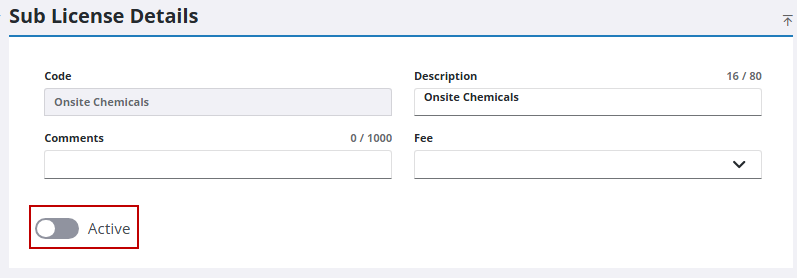
- On the Sub License Details panel, click Active to turn it off.
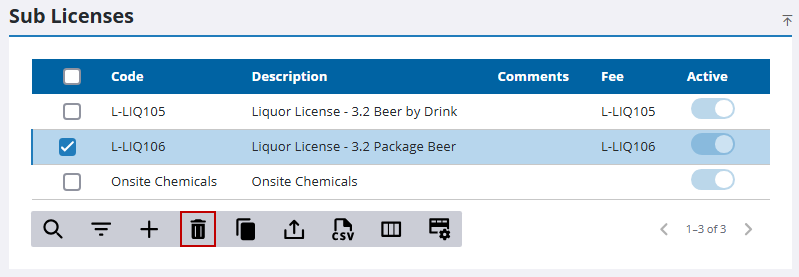
If no historical data is associated with the sub license, remove it from the Sub Licenses panel.
- Select the desired sub licenses and click Delete selected records.
- Click Delete on the confirmation panel.

