Perform a Bulk Export or Bulk Import
Multiple task result records can be exported or imported at once using CSV files. Bulk import actions can be used for adding new records and editing existing records.
|
|
 PREREQUISITES:
 Bulk Export
- From the home page, click Permitting and click Task Results.
- On the Task Results panel, select the entries you want to export data for.
If you don't make any selections, the CSV export file will include data for all records.
- Click Export CSV.
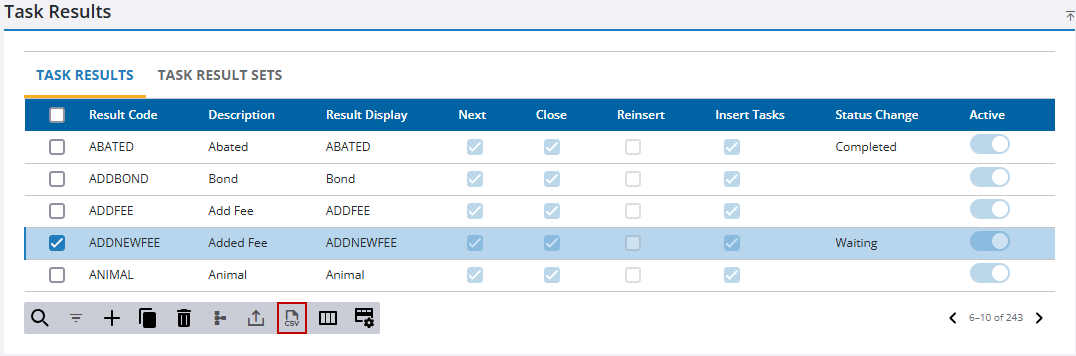
The CSV file downloads.
Bulk Import
- From the home page, click Permitting and click Task Results.
- Download the CSV file(s) that contains the entries you want to edit. See Bulk Export for more information.
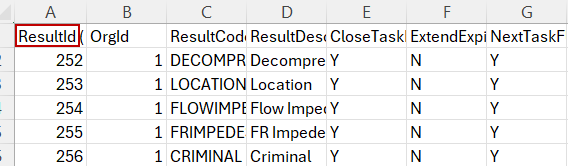
- Edit the CSV file with the data you want to add or edit.
- When adding new entries, leave the ResultId field blank.
- When editing existing entries, leave the value in the ResultId field in place.
- Click Import CSV.
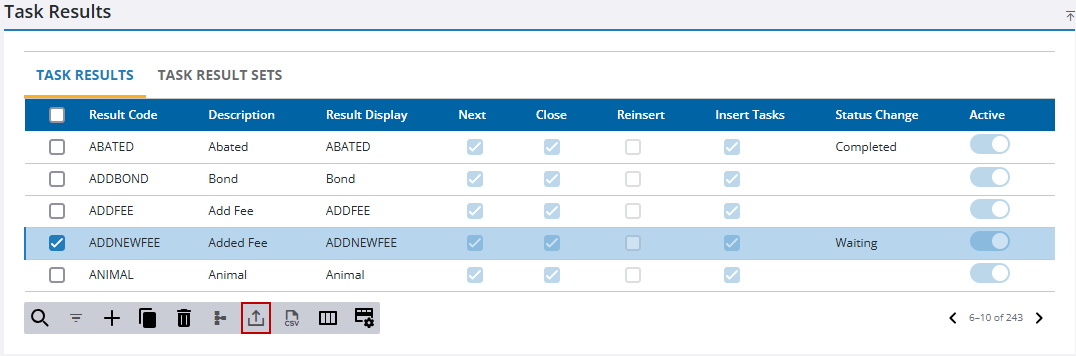
The import panel opens.
- Drag and drop a file into the file upload area, or click within the file upload area to browse and select a file.
After selecting a file, data from the file displays for review in the columns above the file upload area.
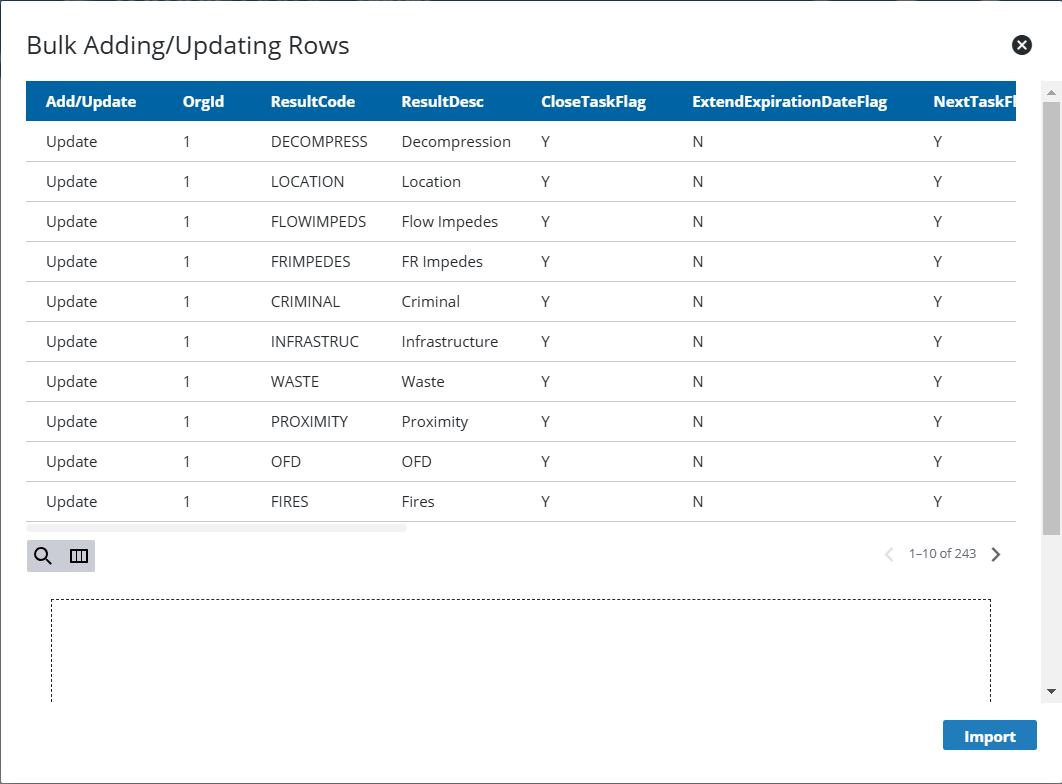
- Click Import.

