Add a Universal Custom Field
- From the home page, click Configure and click Universal Custom Fields.
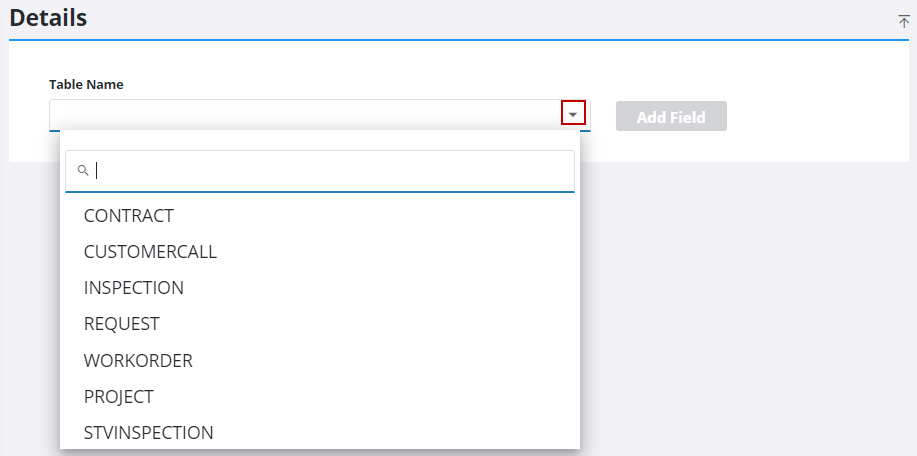
- From the Details panel, select a Table Name from the drop-down list and click Add Field.
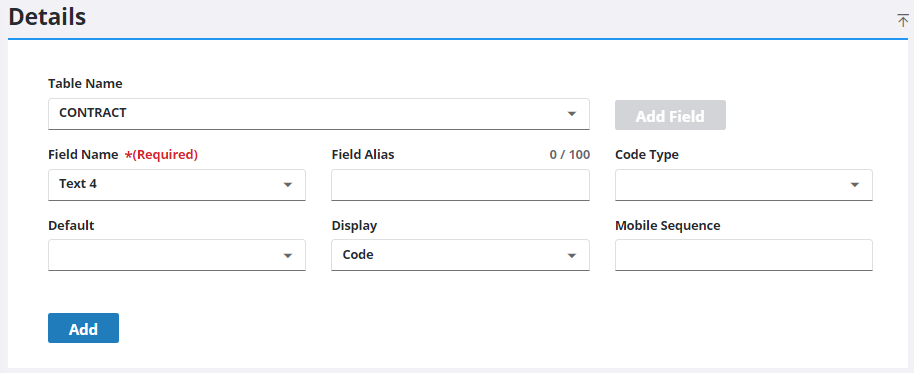
- Select a Field Name and a Code Type in the Details panel and enter any additional information you want to include in the other fields.
- Click Add.
Use Style to expose a universal custom field in an app. See Configure Universal Custom Fields in an App's UI in the Style Guide for Trimble Unity Maintain and Trimble Unity Permit for more information.
Below are examples of the UCFs with each of the three data types: date, number, and text.
- Example 1
- Select WORKORDER from the Table Name drop-down list.
- Select Date1 from the Field Name drop-down list.
- Enter a Field Alias, such as Date UCF.
- Click Save.
- Example 2
- Select WORKORDER from the Table Name drop-down list.
- Select Num1 from the Field Name drop-down list.
- Enter a Field Alias, such as Number UCF.
- Click Save.
- Example 3
- Select WORKORDER from the Table Name drop-down list.
- Select Text1 from the Field Name drop-down list.
- Enter a Field Alias, such as Text UCF.
- Select WOSTATUS from the Code Type drop-down list.
- Select OPEN from the Default drop-down list.
- Select DESC from the Display drop-down list.
- Click Save.

