Add GIS Fields to a Work Order Template
Additional information from the GIS can be displayed on work orders. For example, you may want the work order to display data from the GIS, such as a subdivision name, correlating to the location of the work order. The data displays on the work order Map Layer Fields panel once the address has been geocoded. Any time the X and Y coordinates are updated on the work order, the configured map layer fields are also updated.
Different map layers may be set up to correspond with various districts, zones, boundaries, etc. There is no limit to the number of map layers that can be set up. The map layer must be defined in ArcMap and may have a field containing an employee name used for fields like Submit To. The name must be formatted as <Last_Name>, <First_Name> <Middle_Initial>.
|
|
 PREREQUISITES:
 TIP: You can filter the list of records displayed. See Filter Records for more information.
- Select a work order template.
- Click the Asset and Map tab on the Details panel.
Existing map layer fields configured for this template display in the Map Layers section of the panel.
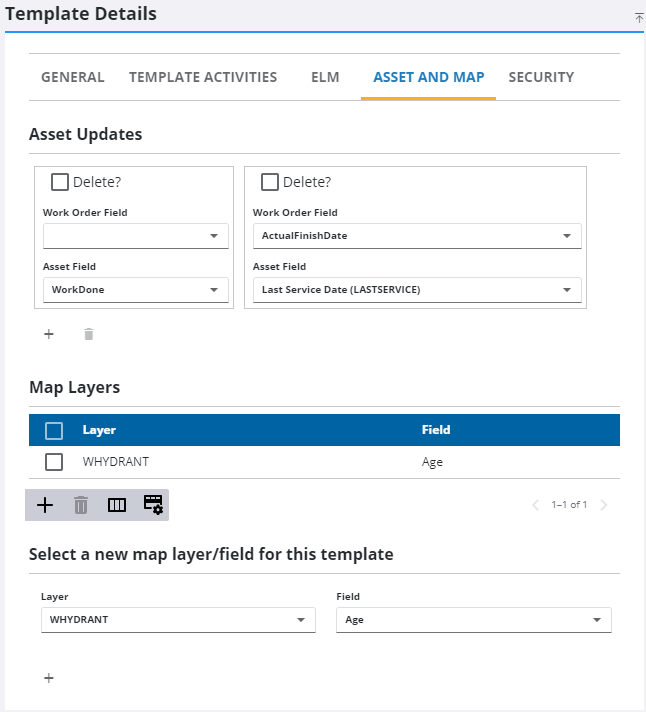
- Select the Layer and Field you want to pull the GIS data from.
 NOTE: Map layers used in work order templates must be classified in the map document as a polygon feature. Fields are populated based on the XY coordinates of the work activity, which is why a polygon layer must be selected.
- Click the add icon.
NOTE: The selected map layer must be configured to the appropriate map service under GIS > Services > Service Layers.
Once a work order is created with this template, the data appears in the Map Layer Fields panel.
NOTE: Your changes are automatically saved, and the changes are verified by a notification at the bottom of the page.

