Configure Asset Updates for a Work Order Template
Asset fields in the geodatabase can be automatically updated when a work order is closed. Each asset field is mapped to the corresponding work order field or custom value so that the asset's attributes are updated when the work order is closed.
|
|
 PREREQUISITES:
 TIP: You can filter the list of records displayed. See Filter Records for more information.
- Select a work order template.
- Click the Asset and Map tab on the Template Details panel.
- Click Add record under the Asset Updates section to add an update.
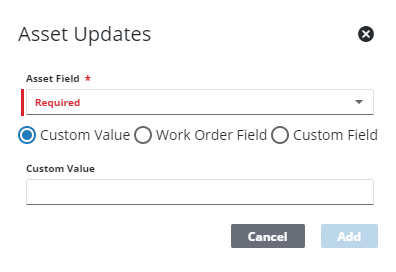
- Select the Asset Field.
- Select Custom Value, Work Order Field, or Custom Field. If you select Custom Value, enter the desired value. If you select Work Order Field, select the desired work order field. If you select Custom Field, select the desired custom field.
There are some important things to note when using custom fields for asset updates:
- The custom field you are mapping must be in the same format and case (lowercase or uppercase) as the attribute field that is being updated.
- Since custom fields are stored in the database as text fields, custom fields can only be mapped to text fields in the GIS. In other words, custom fields only appear in the Work Order Field drop-down list if the value selected for the Asset Field is a text field.

