Configure Mobile Card Layouts
Administrators can customize mobile card layouts for service requests, work orders, and inspections. A mobile card layout controls what information is shown on the summary card of a work activity in Field. See View Work Activity Lists and Summary Cards in the Trimble Unity Field Guide to see where these changes occur in Field.
- Select a template from the Work Activity Templates panel.
- Click the General tab on the Template Details panel.
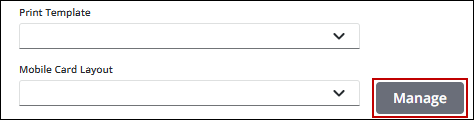
- Click Manage next to the Mobile Card Layout field.
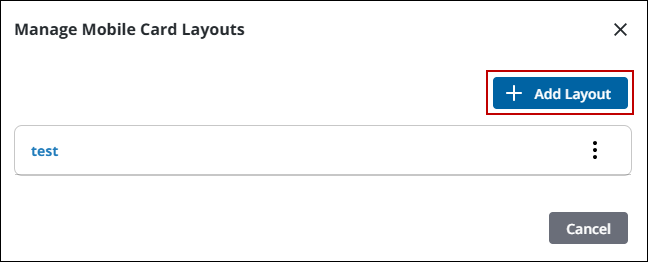
- Click Add Layout.
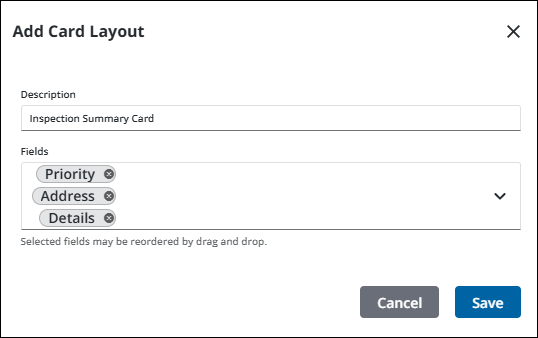
- Enter a Description of the layout.
- Select the fields you want displayed on the summary card.
- Click and drag the fields to reorder the list.
- Click Save.
- Once a layout is saved, click Card Layout Actions to edit or remove a layout.
- Select the desired layout from the Mobile Card Layout drop-down list for the activity.

