Format Rich Text
Trimble Unity Field supports rich text formatting using text styles like bolding, italics, lists and more to better organize and present information. This feature helps maintain a consistent and professional appearance across submissions and improves accessibility by allowing text adjustments for better readability.
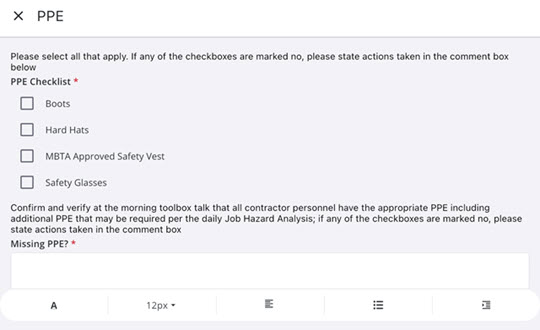
When entering text or selecting text entered in a rich text area field, an interface bar is available with formatting options for rich text. You can change the text style, text size, alignment, list styles and the indentation of the content in rich text fields using the options in this bar.
 NOTE: This action is available only for custom Process data fields of the Rich Text Block type that are configured in Trimble Unity Construct.
- Open a new or existing work activity.
- Tap a rich text field.
- Enter or select text in this field. The following formatting options are available in the rich text formatting bar:
- Text Styles: Tap to apply one or more text styles to the selected text. The options available are bold, italic, underline and strikethrough. You can also remove styles from the selected text.
- Text Size: Tap to change the size of the selected text.
- Alignment: Tap to align the selected text to the right, center, left, or to justify it. You can also remove the alignment from the selected text.
- List Styles: Tap to apply the numbered list style, bulleted list style or remove any list style from the selected text.
- Indentation: Tap to increase the indentation, decrease the indentation or remove any indentation from the selected text.
- Tap Done.
- Tap Save.