View And Select Associated Assets

You can view and select assets associated to a work activity.

  1. Tap a work activity.
  2. Tap Associated Assets.

Any assets associated with the work activity appear in the list.

  • Add icon: Tap to select and add an associated asset to the list from the map.
  • Take Action: Tap to take action to progress the workflow.
  • Complete: Tap to complete the work activity for the associated asset.
  • Create Related Inspection: Tap to create a related inspection for the asset.
  • Create Related WorkOrder: Tap to create a related work order for the asset.
  • Map icon: Tap to view the associated asset on the map.
  • More icon: Tap to access more actions.
  • View Asset DetailsTap to view the asset details.
  • DirectionsTap to open driving directions to the associated asset.
  • Locate: Tap to open advanced locate for the associated asset.
  • WebTap to open the associated asset in the web application.

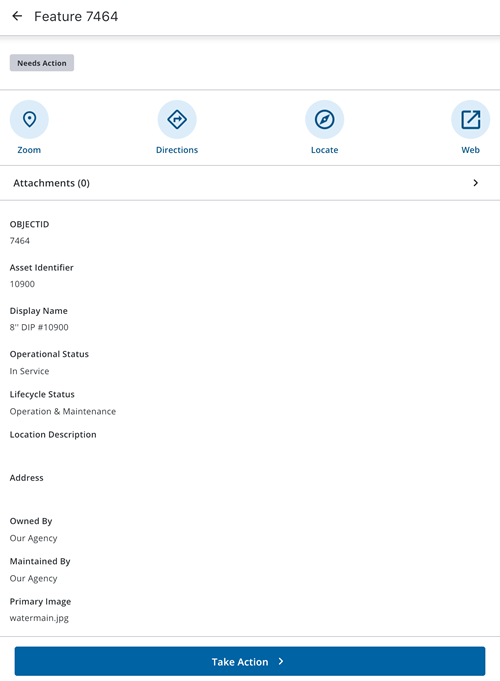
  1. Tap the associated asset to view details and perform the following actions on the associated asset.
  • Zoom: Tap to view the associated asset on the map.
  • DirectionsTap to get driving directions to the associated asset.
  • LocateTap to open advanced locate for the associated asset.
  • Web: Tap to open the associated asset in the web application.
  • Take Action: Tap to take action to progress the workflow.
  • Complete: Tap to complete the work activity for the associated asset.
  • Create Related Inspection: Tap to create a related inspection for the asset.
  • Create Related WorkOrder: Tap to create a related work order for the asset.
  • Hierarchy: Tap to view the asset hierarchy.