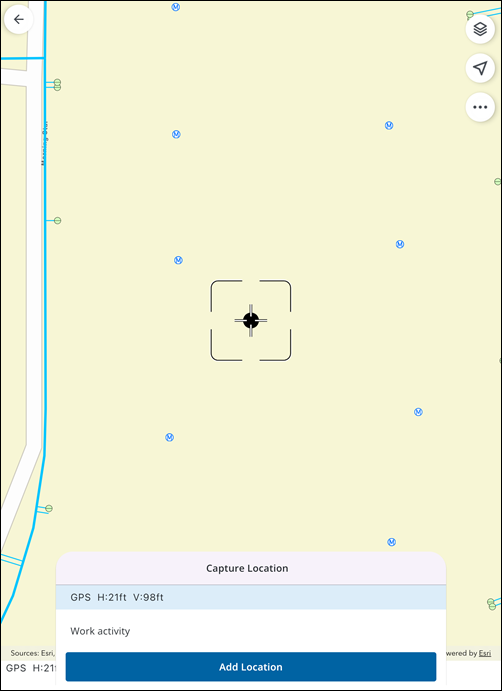
Manually Digitize a Work Activity Location from the Map
You can collect and update work activity location data in the field by manually adding a point to capture a location.
 Capture Location for a Work Activity
You can capture the location for a work activity.
- Open a work activity.
- Tap Location.
- Tap Map.
The Capture Location panel opens to your current location on the map.
- Add a point by tapping on the map.
- Tap Add Location.
The Location is added and you are brought back to the Location page, where related metadata fields are automatically saved and populated.
If using a floor-aware map, the Level Id and Facility Id fields automatically populate based on the selected map location and the currently active level selected using the Select Floor tool. See Select Floor Tool for more information.
Capture Location Panel
The Capture Location panel allows you to manually add a point on the map. It also provides tools to guide your capture process.
- With the Capture Location panel open, tap and drag on the map.
A reticle guide appears on the map and serves as a visual indicator for where the point will be placed.
The following options are available on the Capture Location panel:
- Tap on the map to add a point.
- Add Location: Tap to add a location and return to the Location page.
- Undo: Tap to undo your last action.
- Clear: Tap to clear the point.