Standard Work Activity Forms
You can fill out standard forms during the data collection process for work activities. Required fields ensure that information is captured correctly and thoroughly.
Different forms available include:
- Default Values on Forms: Default values are automatically populated on the form.
- Represent Fields Based on Predefined Conditional Rules: Required fields can be shown or hidden based on predefined conditional rules.
- Validate Required Fields: When required fields are not populated, a prompt appears to inform the user that the field is required to continue.
- Calculate Value Automatically: Values are calculated automatically based on values entered by the user.
- Calculate Condition Scoring Automatically: Conditions are calculated automatically based on the calculated scores entered by the user.
 Required Field
Fields marked with a red asterisk (*) are required and must be filled out to complete a work activity.
Drop-Down List Field
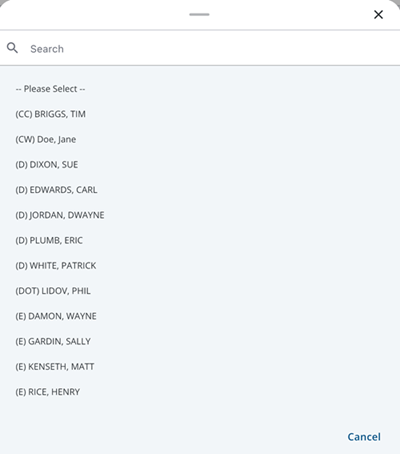
A drop-down list field allows the user to select an option from a drop-down list.
- Tap the drop-down list field.

- Select an option from the list.
The field updates.
Radio Button Field
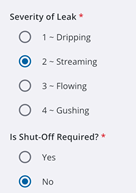
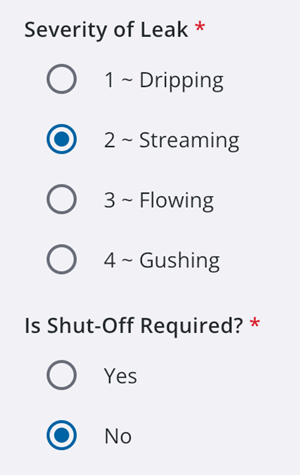
A radio button field allows users to select one answer from a list of options.
- Tap a radio button to select an option.
A filled radio button indicates it has been selected.
Date and Time Field
A date and time field allows the user to select a date and/or time for the field.
- Tap a date and time field.
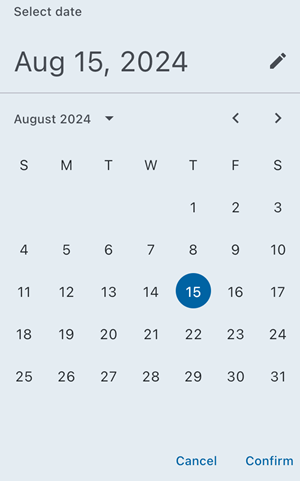
- Select a date from the Select date panel. Tap Confirm. Tap the Pencil icon to input a date via the keyboard.
- Select a time from the Select time panel. Tap Confirm.
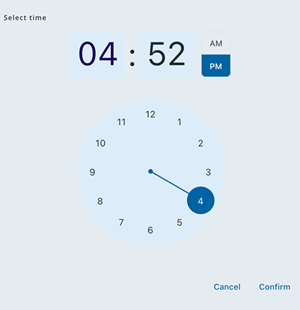
The field updates.
Text Field
A text field allows users to input data via their keyboard.
- Tap the text field.
Your device's keyboard appears.
- Enter in your desired text.

- Tap Done on your keyboard.
The field updates.
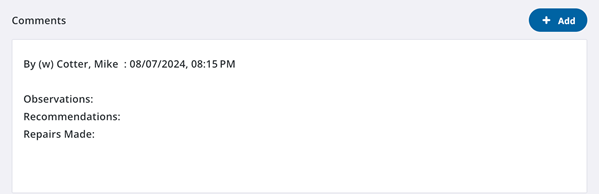
Comments Field
A comments field allows users to add additional comments to a work activity.
Comment Type categories bring structured classification to comments that crews can use to tag comments with a predefined category via a simple selection even when working offline. This ensures that clear and consistent context is assigned to a comment, making it easier for other users to understand and prioritize the information relayed in the comment.
You can select a Comment Type when adding comments to work orders, inspections, and service requests.
Comment Type categories are preconfigured by your administrator in Trimble Unity Admin. See Configure Custom Codes Preferences in the Admin Guide for Trimble Unity Maintain and Trimble Unity Permit for more information. If no categories are configured, the Comment Type drop-down field remains hidden or unavailable, and you can still enter standard comment text.
- Next to the comments field, tap Add.

The Add Comments panel opens.
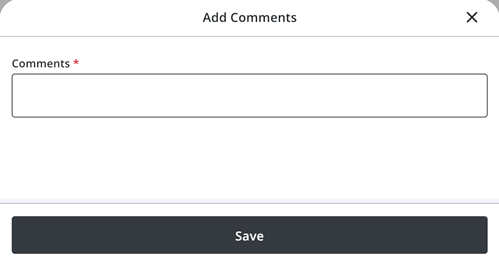
- Tap the Comment Type drop-down list and select a comment type (for example, Supervisor Remark or Additional Information).
- Tap the comments field to enter your comments.
- Tap Add.
The comment is added.