Apply a Saved Filter to Assets
You can sort and filter assets by applying a saved GIS query filter to assets. When you select a filter, the map automatically updates to reflect the results.
When loading more workflow items, Trimble Unity Field shows a loading indicator.
 NOTE: Saved filters in the Trimble Unity Field app are based on queries created in Maintain. See Queries in the Respond Guide for Trimble Unity Maintain and Trimble Unity Permit for more information.
- Tap Saved Filters.

The Saved Filters panel opens. The number of assets included in the saved filter appear in parentheses.
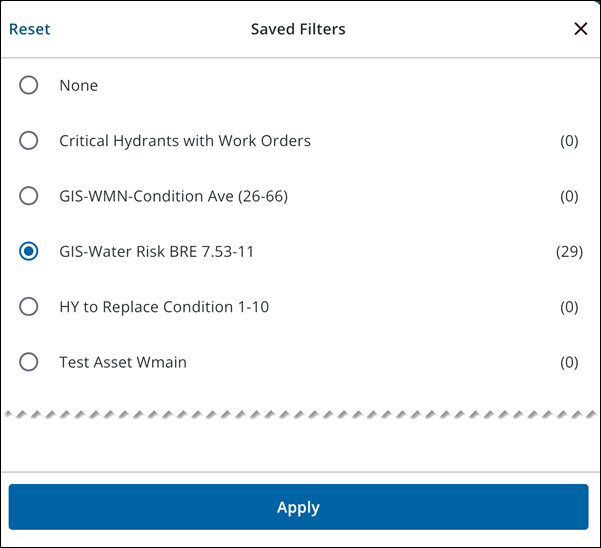
- Select the saved filter you would like to use.
- Tap Apply.
The saved filter you apply becomes your default saved filter and is remembered even after switching list types or logging out of the app. The asset list displays the active saved filter.

