Export Files from PAVER to Trimble Unity
Files that have been exported from PAVER can be imported into Trimble Unity. Once imported, work orders and inspections are automatically created.
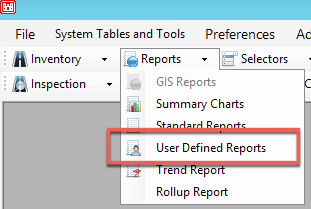
- Select Inventory Export from the Memorized Reports drop-down list.

- Right-click the User Defined Reports table and click Export to XML file.
- Save the file in your chosen location.
- Close the User Defined Reports window.
- Navigate to Inspection > Inspection Data Export (XML).
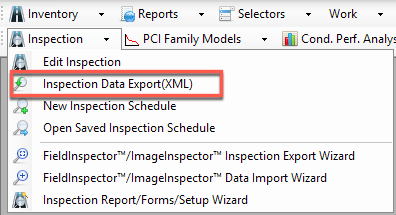
- Click Browse.

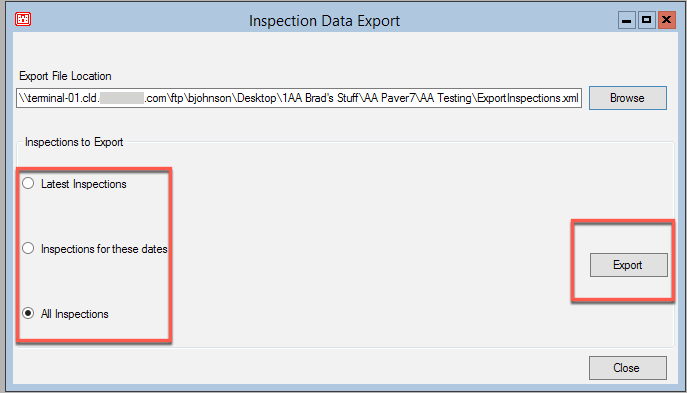
- Browse to the location the file will be saved in and click Save.
- Select which inspections to export.
- Click Export.
- Close the Inspection Data Export window.
- Click M&R Work Planning.

- Click the Project Planning tab.
- Click Edit.
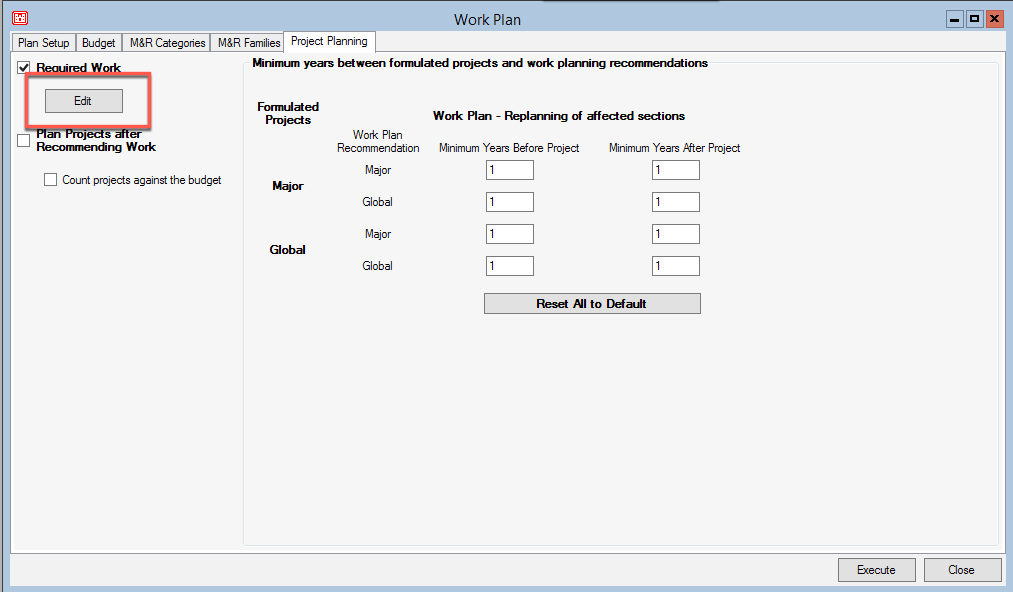
- Generate your project plan according to your needs.
- Click Close.
- Click Execute.
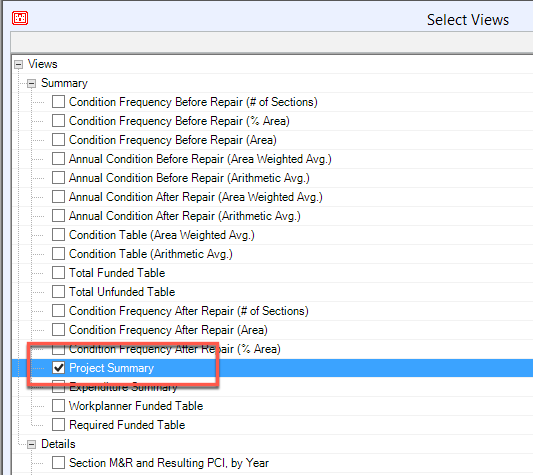
- Select Project Summary.
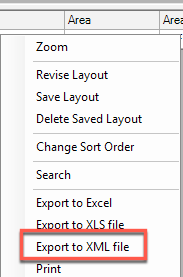
- Right-click the work in the Project Summary panel and click Export to XML file.
- Save the file.