Import Files from PAVER to Trimble Unity
Inspections, inventory, and work history can be exported from PAVER and then imported into Trimble Unity. They can be imported separately or all at once. Any duplicates, which are based on date and section, will not be displayed. Once imported, work orders and inspections are automatically created.
 Import Inspections
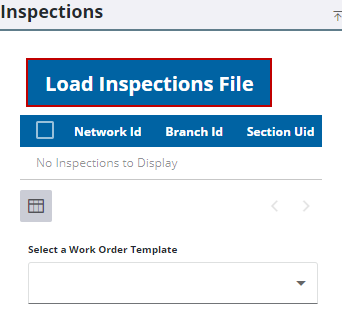
- Select the inspection file. Any inspections that already exist will not be imported.
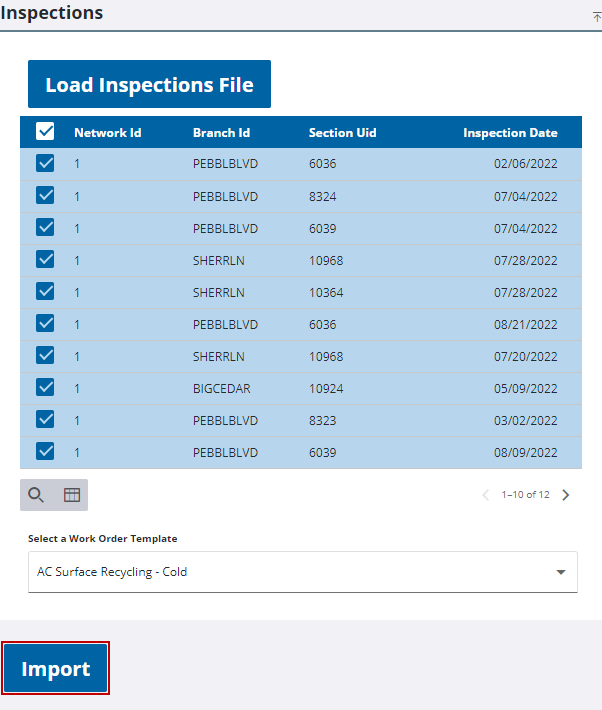
- Select the desired inspections to import.
- Select a work order template from the Select a Work Order Template drop-down list.
- Click Import.
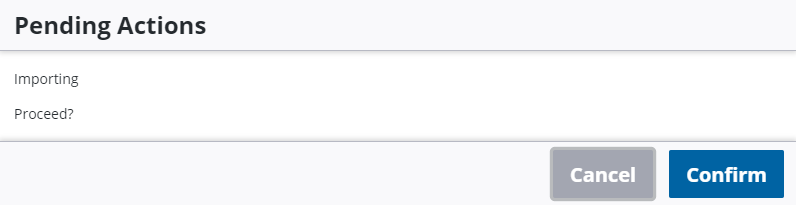
- Click Confirm to proceed with the import.
A work order and an inspection are created.
Import Inventory
When inventory is imported, the GIS is updated with the PCI score, the date of the condition score change, construction date, and surface material.
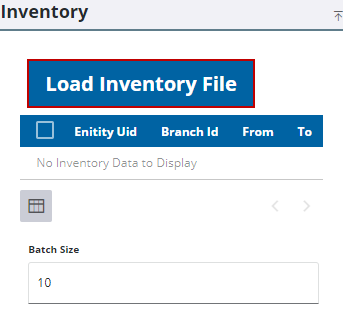
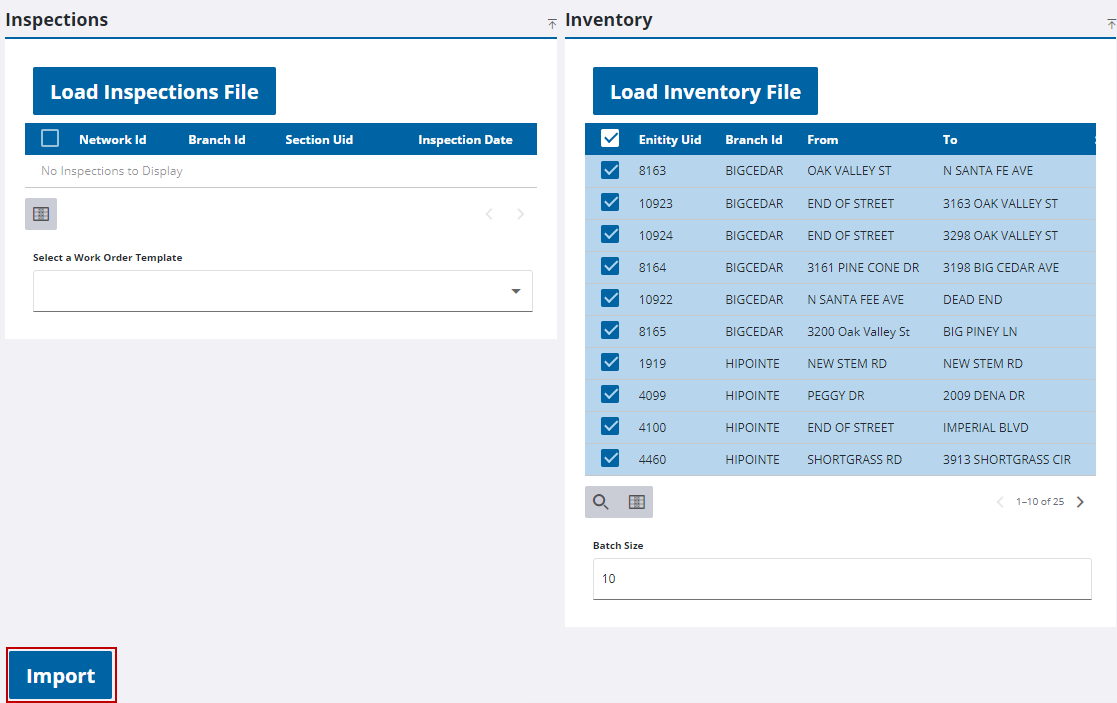
- Select the inventory file.
- Select the desired inventory to import.
- Enter the number of records to download at a time in the Batch Size field. The default is 10.
- Click Import.
- Click Confirm to proceed with the import.
Import Work History
When work history is imported, work orders are created and the Stagefield is set as Proposed.
- Click Load Work History.
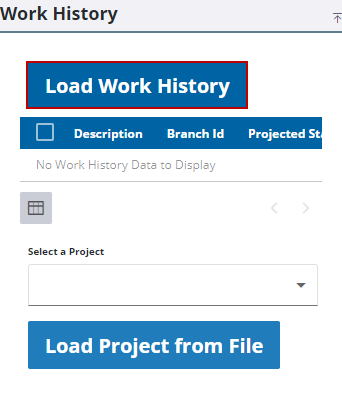
- Select the work history file.
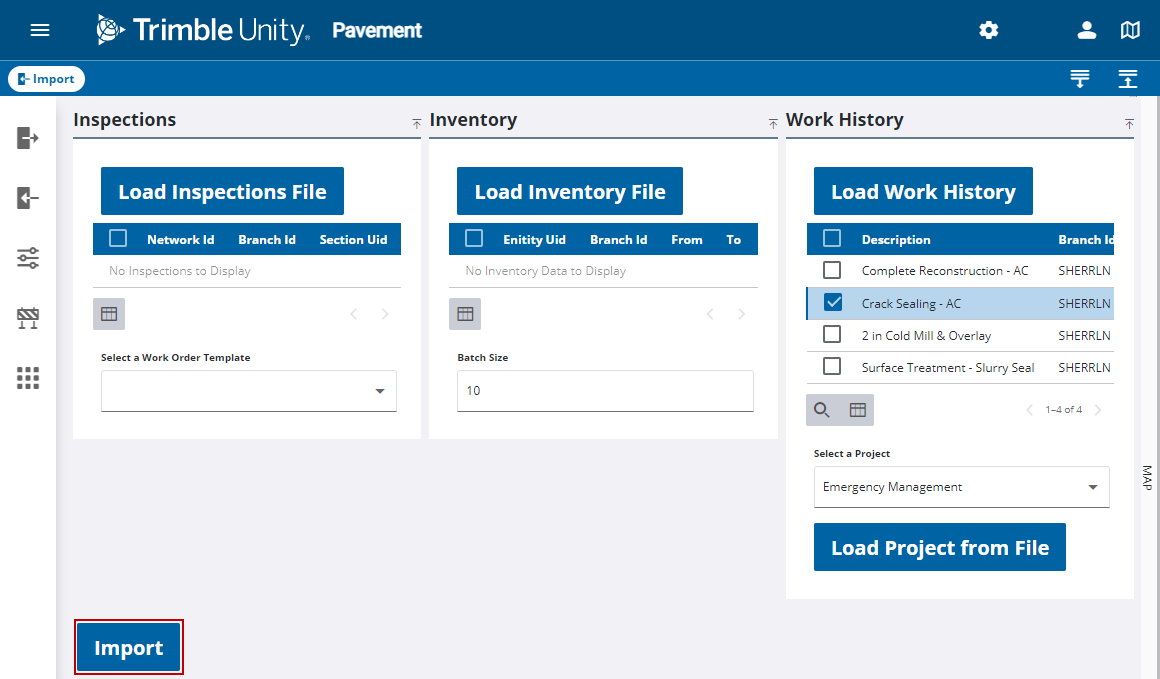
- Select the desired work orders to import.
- Select a project from the Select a Project drop-down list or click Load Project from File to upload a project file.
- Click Import.
- Click Confirm to proceed with the import.
The selected work orders are imported.