Use Comments on Checklists
Comments display as expandable threaded conversations, showing the latest comment and date at the top, and allowing users to reply to existing threads or start new ones. You can edit, remove, format, reply to, and add user mentions to existing comments or add new comments on checklists from the Edit Task panel or Task Manager.
|
|
 PREREQUISITES:
|
|
 Use Edit Task
- Open the checklists section. See Open the Checklists Window for more information.
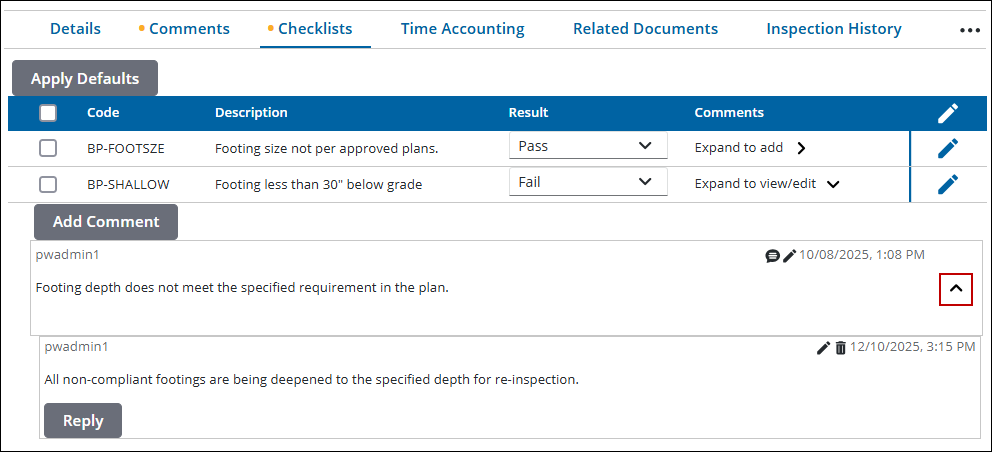
- Click the down arrow in the Comments column to edit, remove, reply to, and add user mentions to existing comments or click Add Comment to add a new comment.
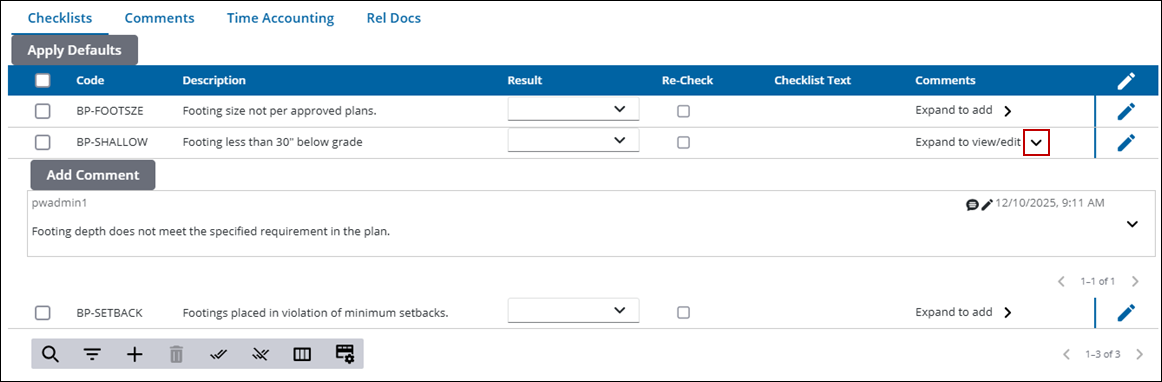
- To reply to a comment, click the down arrow in the comment and click Reply to add or review replies to the comment.
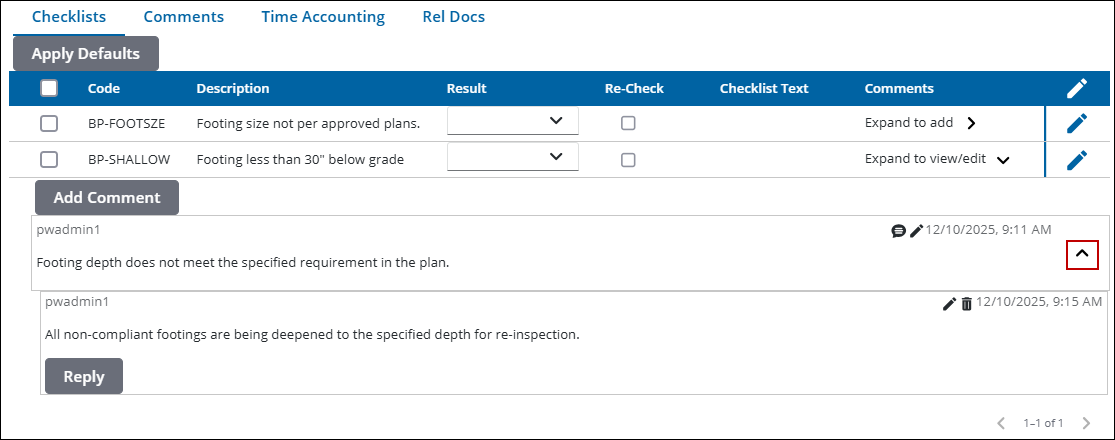
See the Comments section for more information on formatting, adding, or updating comments.
Use Task Manager
Comments can be added to checklist items on a task.
|
|
- Open the new Task Manager and perform a search. See Search for Tasks for more information on performing a search.
- Click a Task Name to open the task action panels.
 NOTE: A numerical count next to each panel header indicates the number of records associated with the task. NOTE: A numerical count next to each panel header indicates the number of records associated with the task. |
- Expand the Checklist task action panel.
- Click Add comment to add a new comment or View/Edit Comments to view, edit, or remove existing comments.
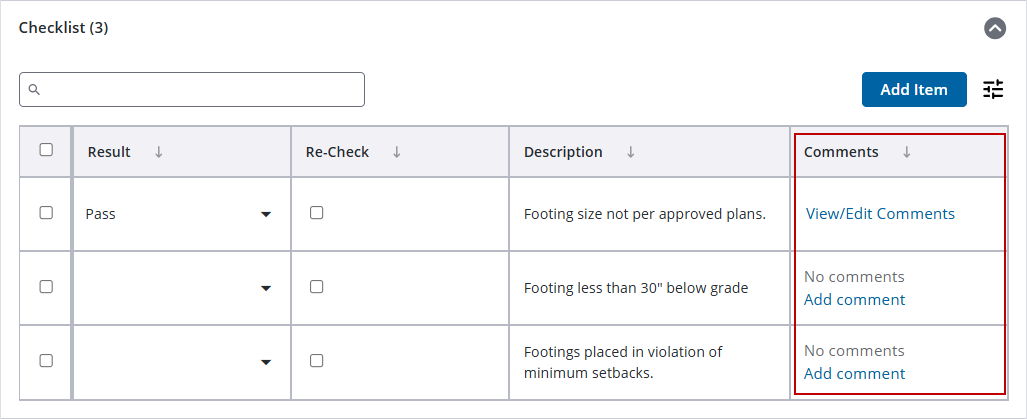
See Format Comments for more information on formatting.
Use Classic Task Manager
- Open Task Manager and perform a search. See Search for Tasks for more information on performing a search.
- Click Checklists by the desired task to open the checklists section.
- Click the down arrow in the Comments column to edit, remove, reply to, and add user mentions to existing comments or click Add Comment to add a new comment.
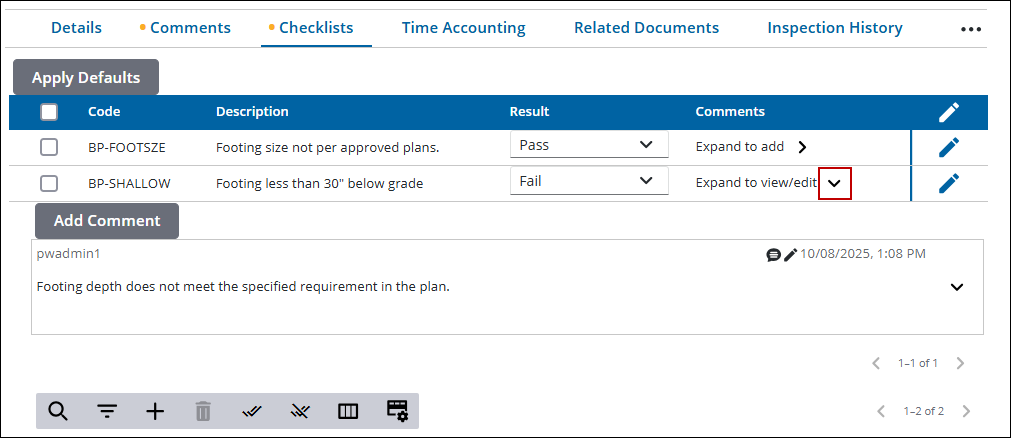
- To reply to a comment, click the down arrow in the comment and click Reply to add or review replies to the comment.
See the Comments section for more information on formatting, adding, or updating comments.

