Comments

Comments display as expandable threaded conversations, showing the latest comment and date at the top, and allowing users to reply to existing threads or start new ones. You can add, edit, remove, reply to or format comments on a task by searching for tasks using Task Manager.

PREREQUISITES:

  • The first time you open Respond, you need to add any apps or pages you need or want to access. For example, use the Route menu option to add a menu item that navigates to the Asset Details, License Management tool, Download Reports, and other pages. See Add Menu Items and Edit Item Fields for more information.

NOTE:

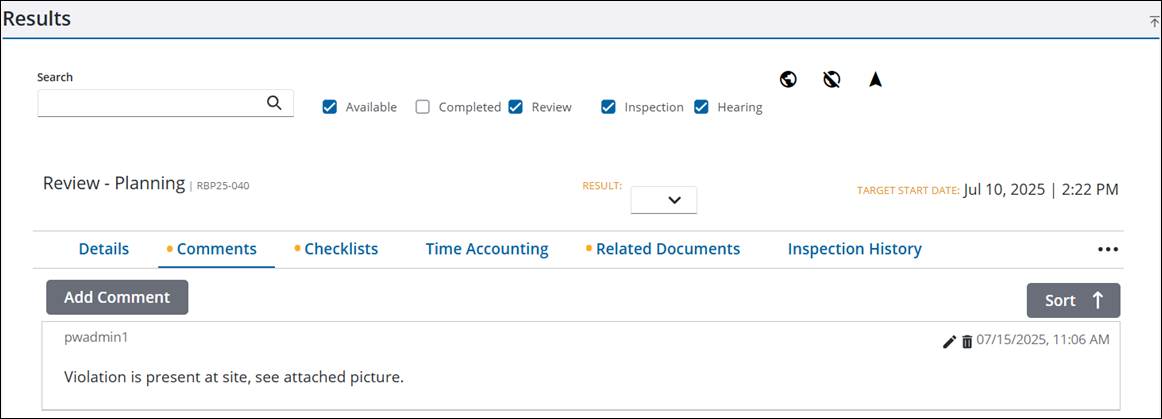
  • A yellow dot next to Comments indicates a comment is present on the case.
  • If notifications are enabled, mentioning a user with @ in a comment triggers a notification.
  • Comments added to a case and/or task using Public Access can be edited in Respond if the user belongs to a security role that has the appropriate security function enabled. See Security Functions in the Admin Guide for Trimble Unity Maintain and Trimble Unity Permit for more information.

  1. Open Task Manager and perform a search. See Search for Tasks for more information on performing a search.
  2. Click Comments by the task to open the comments section.
  3. Click the down arrow by an existing comment to edit, remove, reply to, and add user mentions or click Add Comment to add a new comment.
See Comments for more information on adding, editing, deleting, or formatting comments.