Add a Calendar Widget
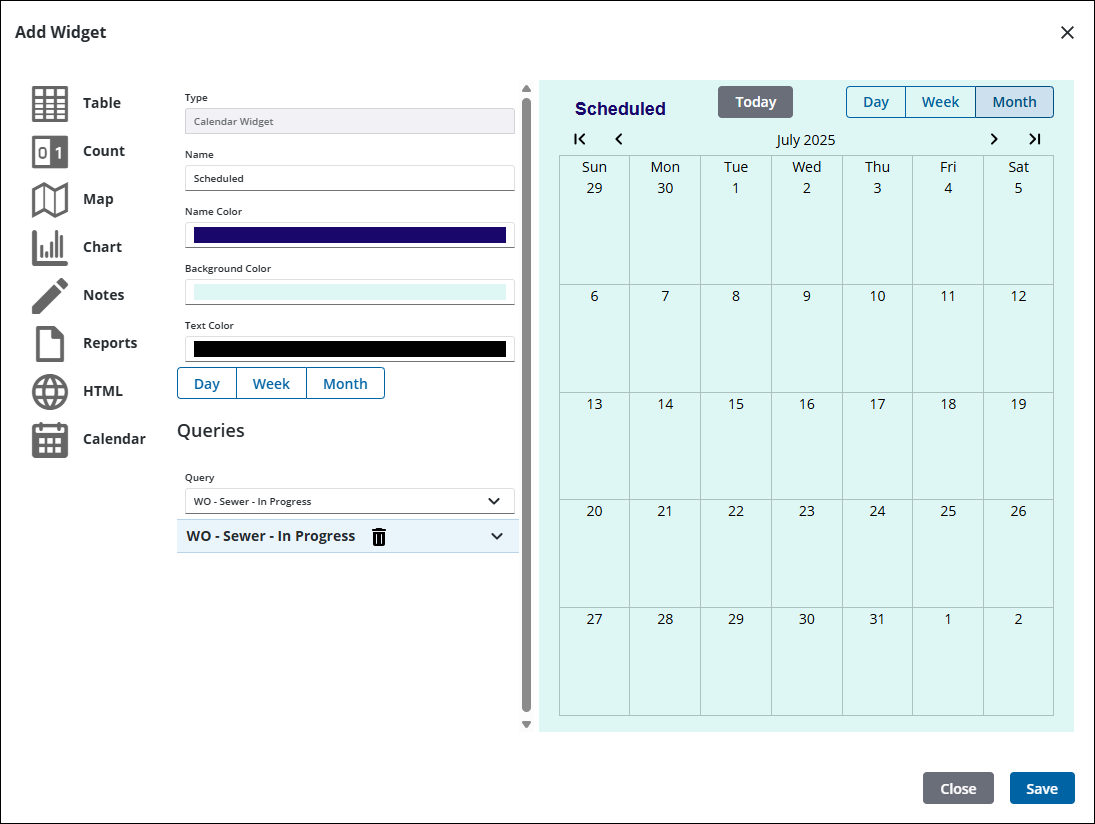
Calendar widgets allow for viewing scheduled work activities. This widget displays scheduled work activities in a calendar based on queries created in the Query Editor.
|
|
 PREREQUISITES:
- Click Dashboard.
- Click
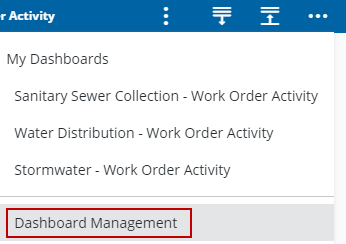
 NOTE: The most-recently-viewed dashboards display. To quickly switch between recently-viewed dashboards, see Switch Between Dashboards for more information.
The Dashboard Management page opens.
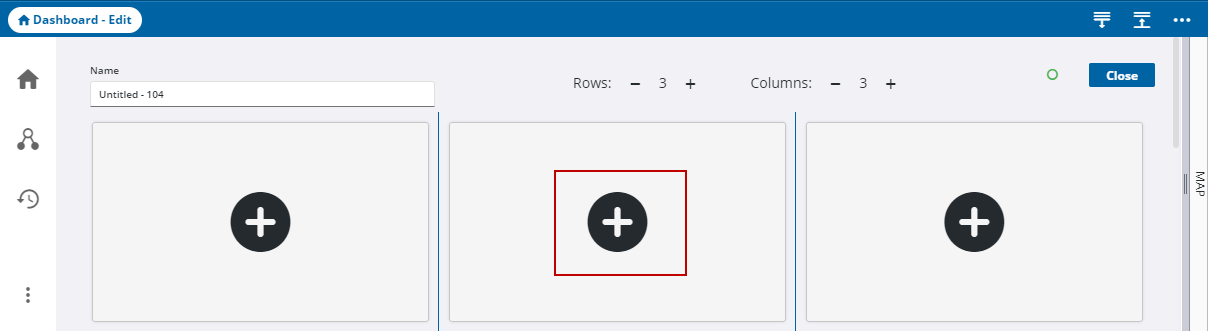
- Click the edit icon in the Dashboards panel.
- On the Dashboard - Edit page, click the add icon.
The Add Widget panel opens.
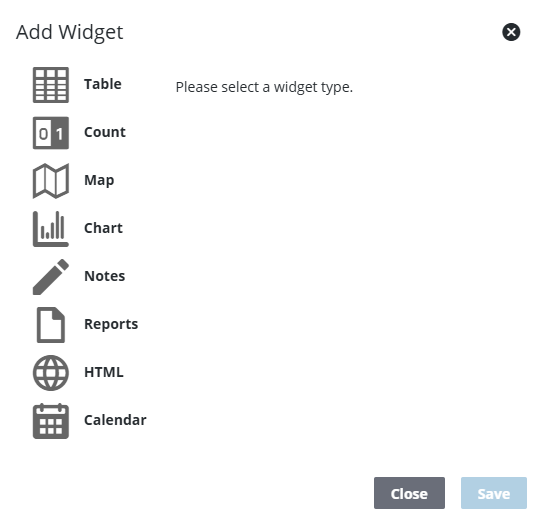
- Select Calendar.
NOTE: A preview appears to the right on the Add Widget panel that dynamically changes as you define fields for the widget.
- Enter the Name.
- Select the Name Color, Background Color, and Text Color.
- Select the Main Text Color or the Pie Chart Palette, depending on which Chart Type you selected.
- Select Day, Week, or Month to select which calendar to use.
- Select a query or queries from the drop-down list.
- Click Save.