Manage the ActiveReports Download Queue
You can manage the queue of downloading ActiveReports from the Download Reports page. ActiveReports appear on this page that have been downloaded to print, email, or previewed from the Dashboard or the Report Designer.
|
|
 PREREQUISITES:
The reports can be viewed all at once, or by status.
- Select a report status to view a list of reports.
- All: Click this tab to view all downloaded ActiveReports. They can be downloaded or deleted.
- Ready: Click this tab to view reports that have been generated. They can be downloaded or deleted.
- Queued: Click this tab to view reports currently processing. Once they've been processed, they either move to Ready or Failed.
- Failed: Click this tab to view reports that have failed to generate. They can be deleted.
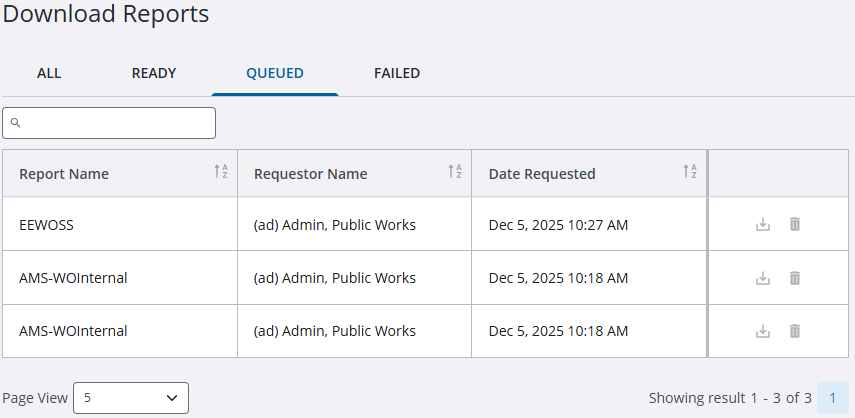
- Use the search bar to narrow down the results by Report Name.
- Set the Page View to view more or less results on the page.
- Click Download to the right of the report to download the report.
- Click Delete to delete the generated report.
- To quickly view the report status, click the Download Status icon on the main toolbar.
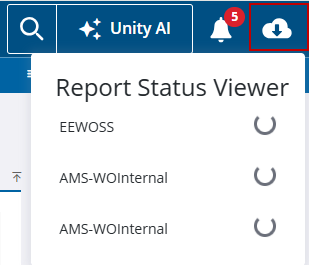
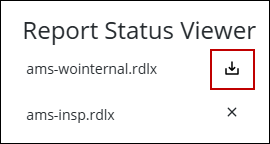
Once the report is ready, you can click the download icon to download the report in the Report Status Viewer panel.