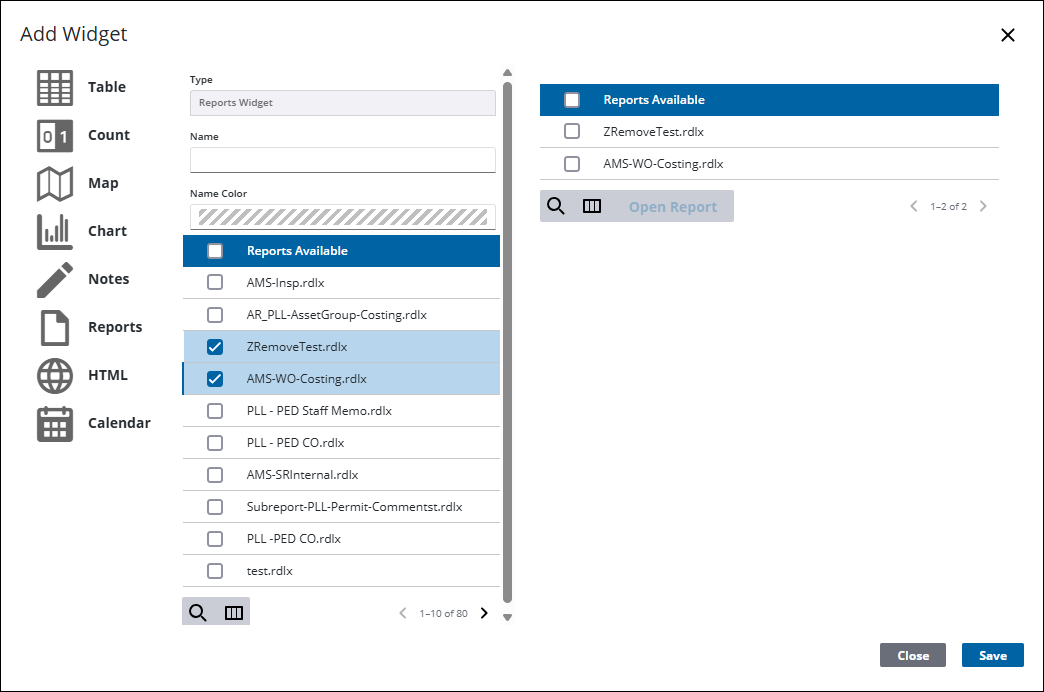
Add a Reports Widget
The Report List widget provides quick access to reports containing specific domain and database information.
|
|
 PREREQUISITES:
- Click Dashboard.
- Click
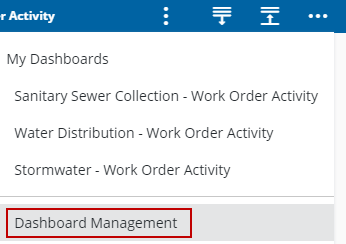
 NOTE: The most-recently-viewed dashboards display. To quickly switch between recently-viewed dashboards, see Switch Between Dashboards for more information.
The Dashboard Management page opens.
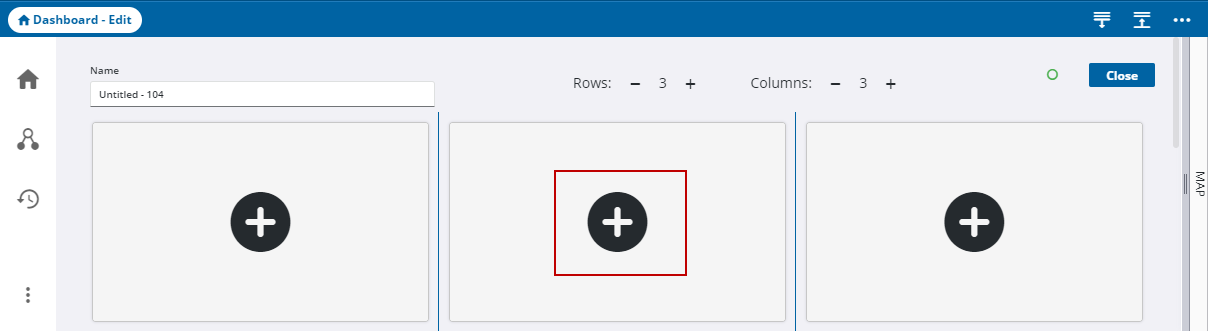
- Click the edit icon in the Dashboards panel.
- On the Dashboard - Edit page, click the add icon.
The Add Widget panel opens.
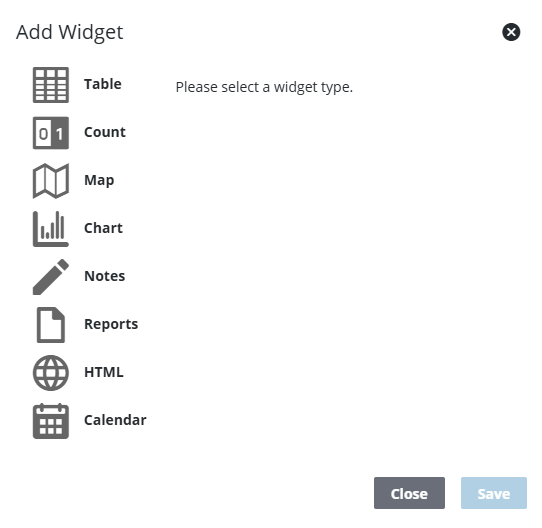
- Select Reports.
NOTE: A preview appears to the right on the Add Widget panel that dynamically changes as you define fields for the widget.
- Enter the Name.
- Select the Name Color.
- Select the desired reports.
- Click Save.