Unscheduled Work Activities
Unscheduled items are available work activities that have not been scheduled or assigned. You can filter this list by clicking Work Activities.
 Assigning and Scheduling Work Activities
- Click Work Activities to open the Filters panel.
The Filters panel opens, allowing you to filter based on various criteria including Activity Type, Query, Target, and more.
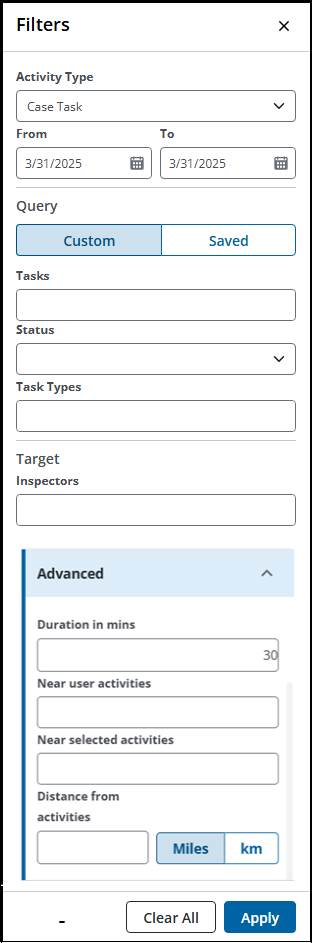
- After selecting your desired filters, click Apply.
The Unassigned Work Activities panel updates and displays a list of all unassigned work activities that match your filter criteria. The ID, Description, and Duration fields for the work activities also display.
- Search icon: Click to enter and filter by the ID, Description, and Duration fields.
- Show Filters: Click to return to the Filters panel.
- Rows icon: Click to change the number of rows viewed at a time in the panel.
- Id: Click on an unscheduled work activity's Id to open the work activity in a new browser in Trimble Unity Respond.
- Click on an unscheduled work activity to view and edit its Event panel in Workload.
If the map is open, hovering over a work activity in the Unassigned Work Activities panel highlights it on the map.
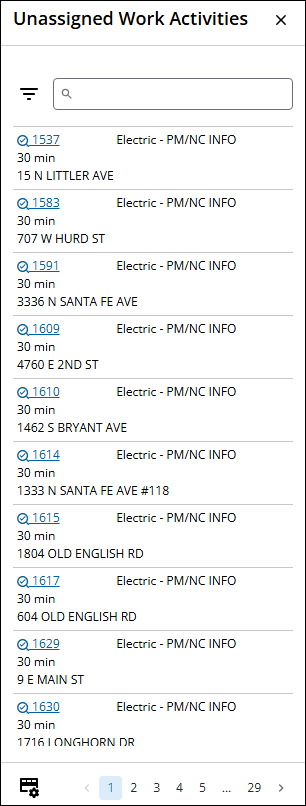
- Click and drag unscheduled work to the work calendar view and drop it at the time you want the work to start.
 NOTE: When a case task without a target start or end date is dragged onto the calendar, the date and time where the task is dropped populates the task's target start date. The duration set on the task is then used to determine the target end date. The duration displays in a days, hours, and minutes format.
Depending on your work calendar view, you can drag and drop the unscheduled work activity onto a day or directly to an assignee.
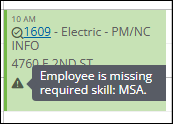
If you drop a work activity on an employee who does not have the required skills for that work activity, a message displays at the bottom of the screen that says Employee is missing required skill. A triangle icon also appears on the activity after it is dropped on the calendar.
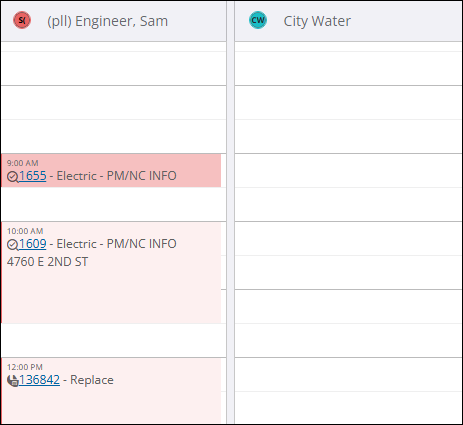
- To move multiple scheduled work activities to a different assignee, click and drag multiple work entries to the preferred day for the other assignee in the Day view.
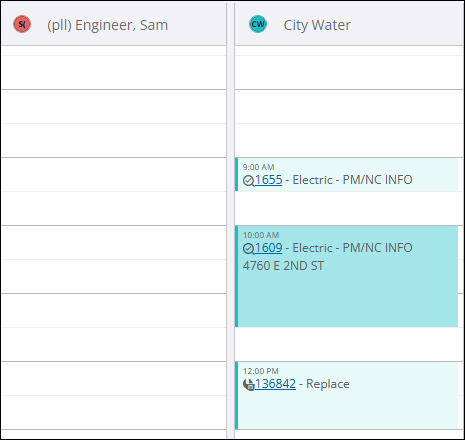
The assignee name updates.
When you drop multiple selections onto the same time, a Conflicting Events panel appears, informing you that updating the event will conflict with the following events indicated in the message and asking you to confirm that you would like to continue with the update.
- Cancel: Click to cancel the update. If you choose to cancel, you can then reschedule the conflicting item by clicking and dragging it to a different time or day. Or, you can click and drag the conflicting work entry from the schedule back to the Unassigned Work Activities list.
- Update: Click to confirm the update. If you confirm the update, the entries are placed side-by-side in the time slot.
Week or Month View
- Drag and drop the activity onto the day and time you want the work to start.
The Assignee panel opens. These lists are populated with the respective Submit To Employees, Submit To Crews, or Inspectors for the appropriate work activities. If only one assignee is available, the work activity is automatically assigned to them.
- Select an Assignee.
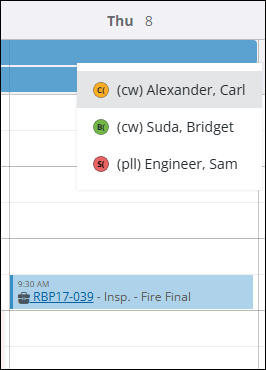
The work activity is scheduled and assigned.
|
NOTE: The Unassigned Work Activities panel displays both unassigned and unscheduled work activities. If a work activity is already assigned but not scheduled, dropping it onto the Week or Month view schedules the activity for the date and time selected but retains its existing assignee. You will not be prompted to select another assignee when a work activity is already assigned. |
Day View
You can assign and schedule work activities in the Day view.
- Drag and drop the activity onto the day and time you want the work to start in the respective column for the employee you want to assign the work to.
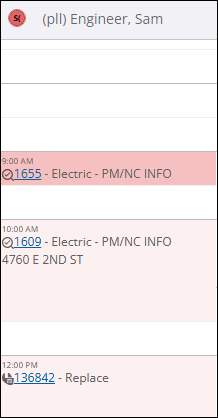
The work activity is scheduled and assigned.