Edit a Data Detail in a Data Group
Data details can be edited individually or in bulk. For bulk editing, see Perform a Bulk Export or Bulk Import.
|
|
 PREREQUISITES:
 NOTE: Multiple records can be added or edited at the same time. See Perform a Bulk Export or Bulk Import for more information.
- From the home page, click Permitting and click Case Data Setup.
 TIP: You can filter the list of records displayed. See Filter Records for more information.
- On the Case Data Setup panel, select a case data group.
- On the Data Details panel, select a data detail.
- Edit any desired fields in the Case Data Details section.
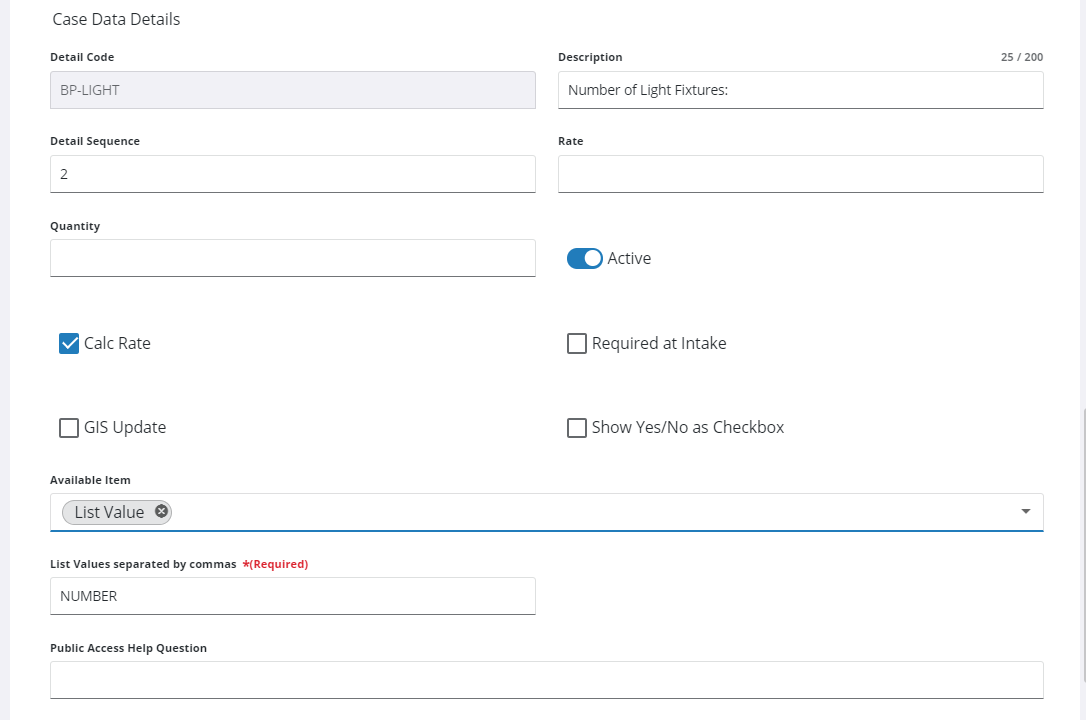
NOTE: Changes are automatically saved and verified by a notification at the bottom of the page.
Add Fees Based on Case Data
Fees can be configured to be added automatically when a specific case data value is selected.
- Select a case data group from the Case Data Setup panel.
- Select an item from the Data Details panel.
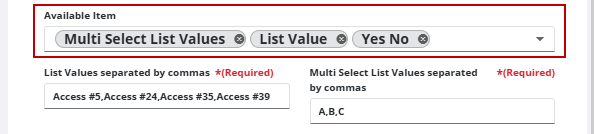
- In the Case Data Details section of the Data Details panel, select one or more of the following values from the Available Item drop-down list:
- Yes No
- List Value
- Multi Select List Value
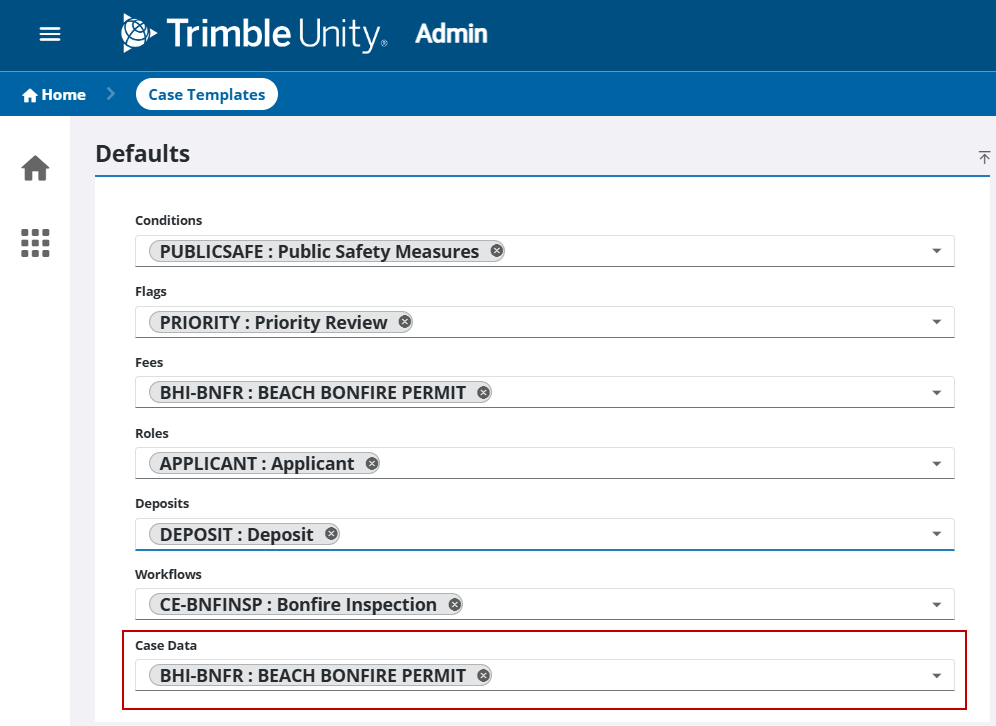
- If selecting the Yes No option, add the Data Detail item to the desired template on the Case Data field in the Defaults panel of the Case Templates page in Admin.
For example, if you select the Yes No option in the Available Item field for a Data Detail item named BHI-BNFR: BEACH BONFIRE PERMIT, you must assign that Data Detail to the target template in the Case Data field in the Defaults panel of the Case Templates page:
NOTE: If a fee already exists as a default on a template, adding the fee based on case data overrides the default value but only for Case Data items that are required during intake. For example, if a fee exists as a default fee, but No is selected in Respond during intake, the default fee is not added. If Yes is selected during intake, the fee is added. If no fee configuration in Admin is made using the Case Data Details: Fees Setup panel for a given default fee, the fee is added in Respond.
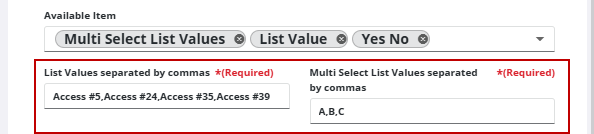
- If selecting the List Value or Multi Select List Values option(s), enter or edit the values in the List Values separated by commas and Multi Select List Values separated by commas fields as needed.
- Click Add record on the Case Data Detail: Fees Setup panel.
Items on the Case Data Detail: Fees Setup panel can be edited individually or in bulk. For bulk editing, see Perform a Bulk Export or Bulk Import.

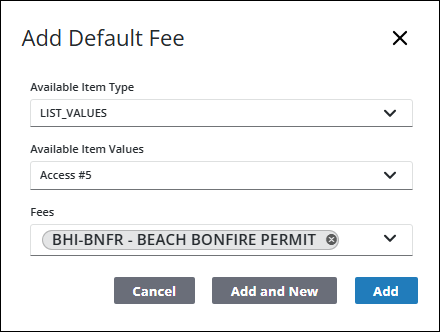
- On the Add Default Fee panel, select the desired options in the Available Item Type, Available Item Values, and Fees drop-down lists.
The options in the Available Item Type and Available Item Values drop-down lists are governed by the inputs made in steps 3 and 5.
- Click Add.