Add a Template Map Logic Condition
|
|
 PREREQUISITES:
 IMPORTANT:The work activity must have X and Y values when the user tries to create the work activity. That means if a map logic condition is applied to a template, you can no longer create a work activity from that template without populating the X and Y values, even if the work activity does not meet the map logic condition to be blocked. If assets are attached to the work activity, every asset must be selected within a valid area for the work activity to be created.
 NOTE: Multiple records can be added or edited at the same time. See Perform a Bulk Export or Bulk Import for more information.
- From the home page, click Permitting and click Template Map Logic.
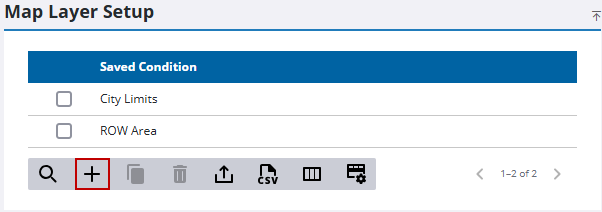
- On the Map Layer Setup panel, click Add record.
- On the Add Template Map Logic panel, click the Select the Action drop-down list to select the action you want to occur (Do Not Allow Case Create or Allow Case Create) and enter a name or description for the condition in the Condition Name field.
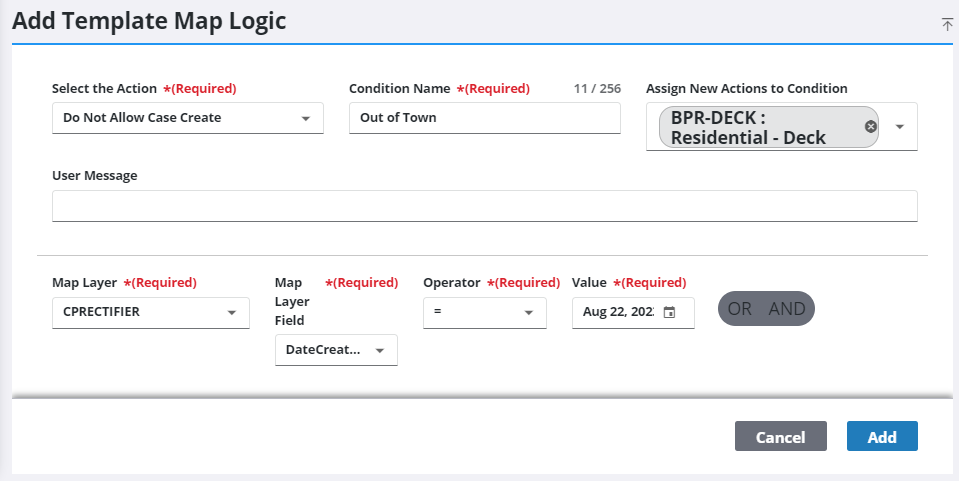
- In the User Message field, enter the message that users will see when this condition is activated. For example, this message may say "Application must be inside the city limits," or "Can’t apply for this permit type within a half mile from a school.”
- Select a map layer using the Map Layer drop-down list.
This will automatically populate the Map Layer Field drop-down list with a selection of database fields associated with the selected map layer.
- Use the Map Layer Field drop-down list to select the field that will trigger the condition.
The Operator field will populate once you have selected a field, and each field may have different operators associated with it.
- Select an operator from the available options.
IMPORTANT: The value you enter in the Value field must match what is set up in the GIS in order for the condition to take effect. For example, if the GIS specifies a value of YES, you must enter YES in the Value field for the specified action to take place.
- Select AND or OR to add additional criteria to the condition.
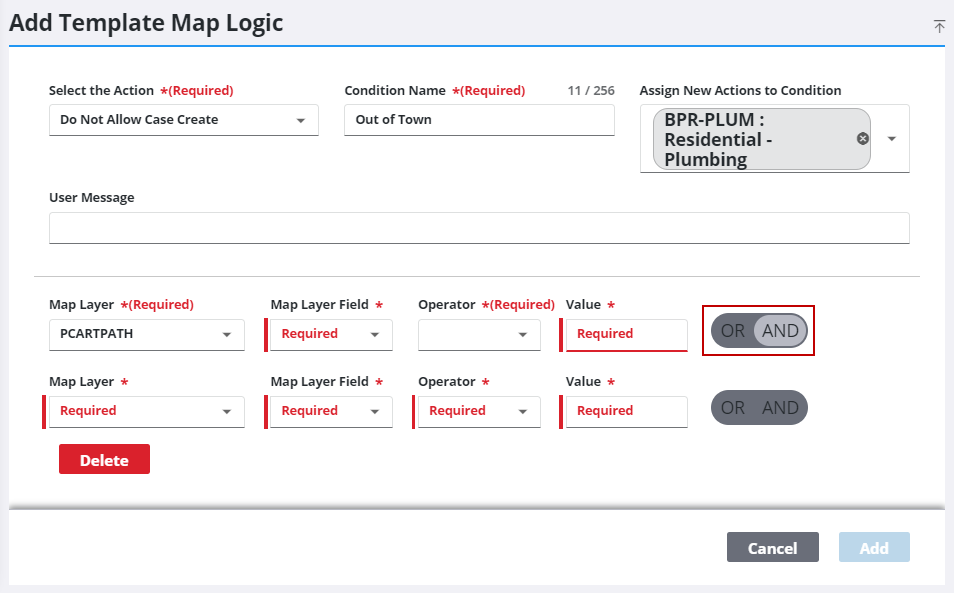
- Click Delete next to any extra map layers that you do not want to keep.
- Click Add.

