Edit a Template Map Logic Condition
Existing template map logic conditions may be changed.
|
|
 PREREQUISITES:
- From the home page, click Permitting and click Template Map Logic.
 TIP: You can filter the list of records displayed. See Filter Records for more information.
- On the Map Layer Setup panel, select the condition you want to edit.
- On the Assigned Actions panel, use the drop-down list to add or remove actions.
 NOTE: Multiple records can be added or edited at the same time. See Perform a Bulk Export or Bulk Import for more information.
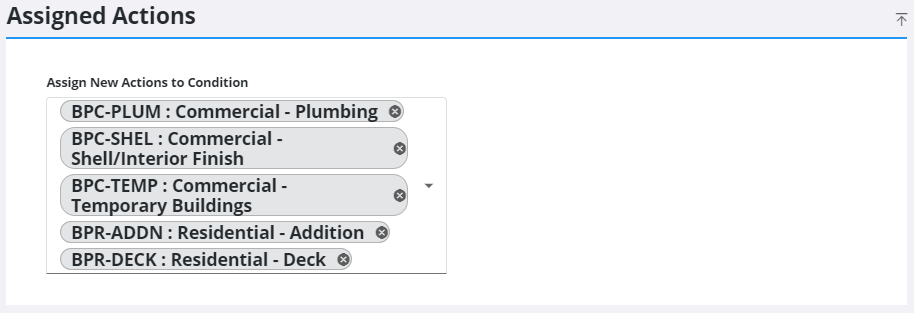
NOTE: Your changes are automatically saved, and the changes are verified by a notification at the bottom of the page.
- On the Update Template Map Logic panel, click the Select the Action drop-down list to select the action you want to occur (Do Not Allow Case Create or Allow Case Create) and edit the name or description for the condition in the Condition Name field.
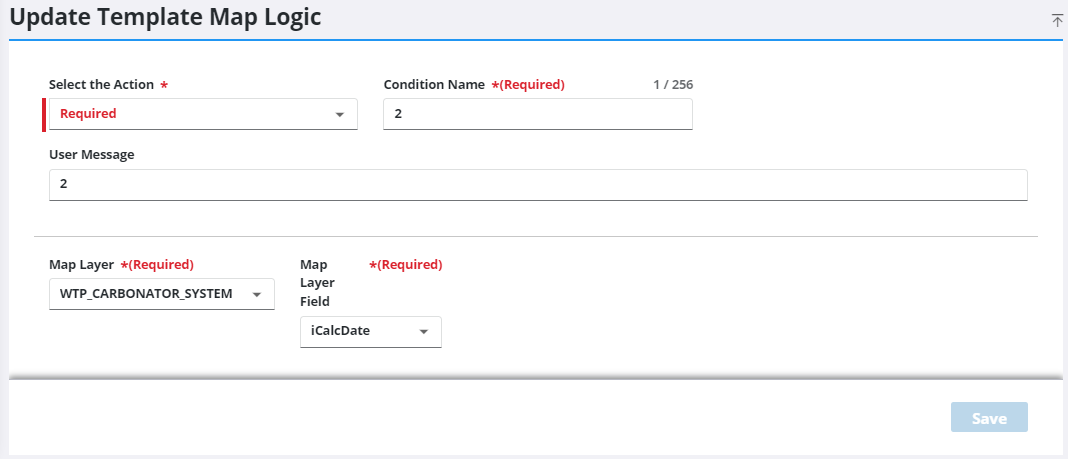
- In the User Message field, edit the message that users will see when this condition is activated. For example, this message may say "Application must be inside the city limits," or "Can’t apply for this permit type within a half mile from a school.”
- Select a map layer using the Map Layer drop-down list.
This automatically populates the Map Layer Field drop-down list with a selection of database fields associated with the selected map layer.
- Use the Map Layer Field drop-down list to select the field that will trigger the condition.
- Click Save.

