Add a New Status
If the status you want is not in the list, you can add a new one from the Workflows page.
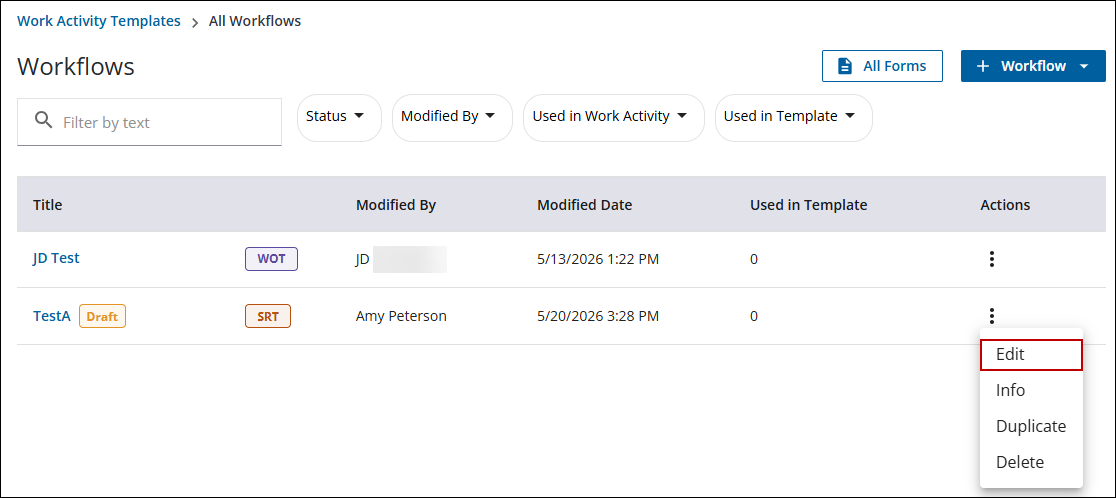
- From the home page, click Configure and click All Workflows.
 TIP: Alternatively, open the Work Activity Templates page and click the All Workflows tab.
- Search for the desired workflow. See Search Workflows for more information.
- To the right of the workflow you want to clone, click the three dots icon under the Actions column.
- Click Edit.
You can also click the workflow title to quickly open the workflow.
Select a status in the workflow.
- Click Status in the Status panel.
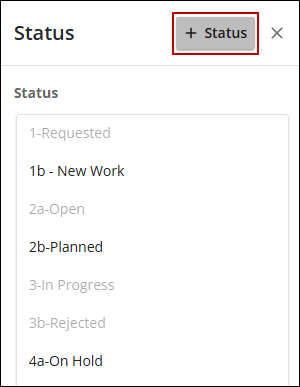
- Click Add.
You can add either a new status or new status category.
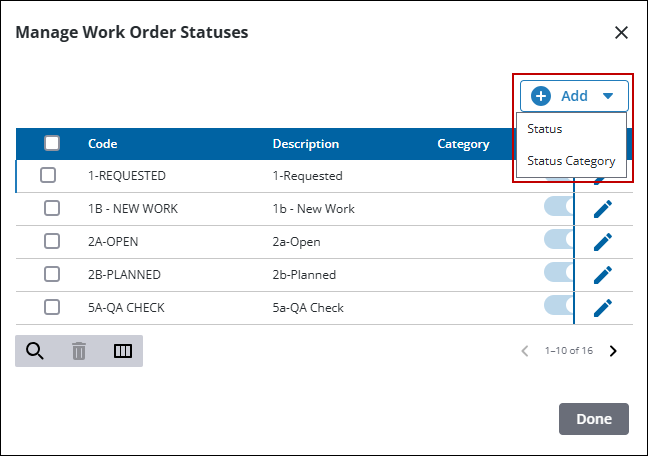
- To add a status, click Status.
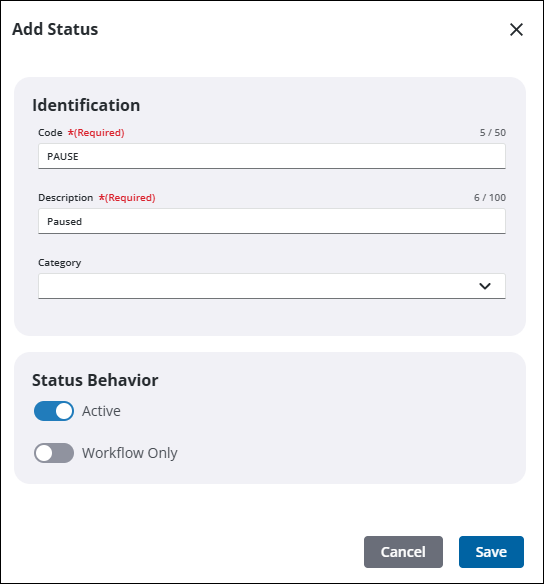
- Enter the Code and Description.
- Select the Category, if desired.
- Turn on Active if you want this code available for use.
- Turn on Workflow Only if you want this status to only be used in a workflow and to not appear in the Status drop-down list in Respond.
- Click Save.
Statuses can also be manged in Preferences. See Add Status Values for an Inspection, Add Status Values for a Service Request, and Add Status Values for a Work Order to add a new status.
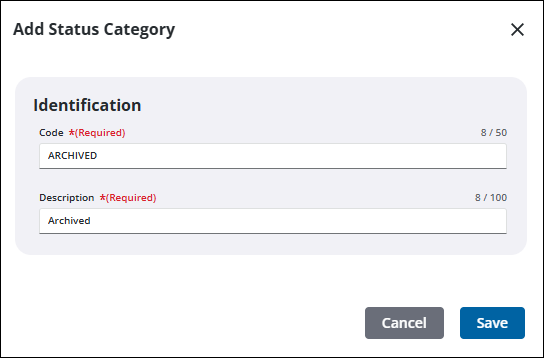
- To add a status category, click Status Category.
- Enter the Code and Description.
- Click Save.
Status categories can also be added in Custom Codes in Preferences using the STATUSCATEGORY custom code. See Configure Custom Codes Preferences for more information.

