Edit a Workflow
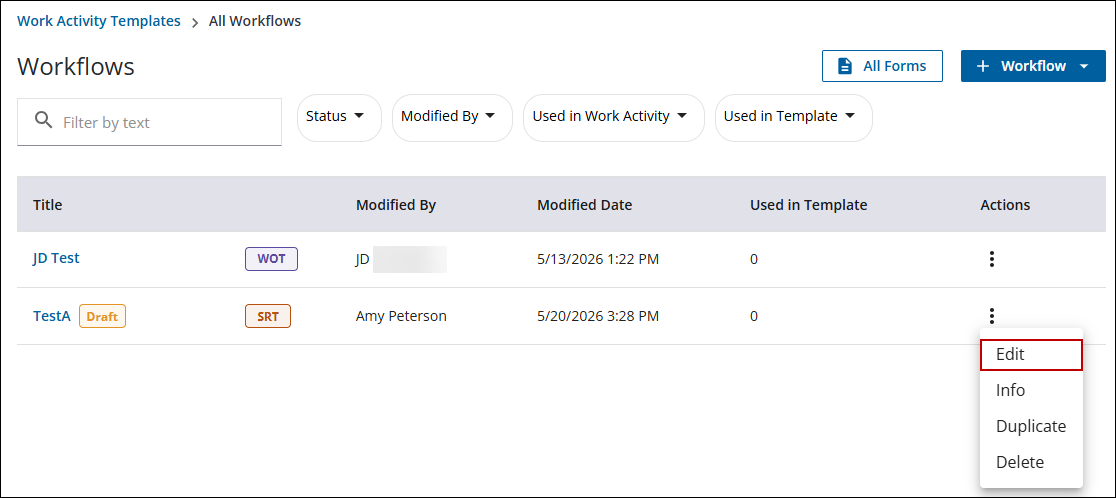
- From the home page, click Configure and click All Workflows.
 TIP: Alternatively, open the Work Activity Templates page and click the All Workflows tab.
- Search for the desired workflow. See Search Workflows for more information.
- To the right of the workflow you want to clone, click the three dots icon under the Actions column.
- Click Edit.
You can also click the workflow title to quickly open the workflow.
- Edit the workflow as desired and click Save in the upper-right corner. This saves the changes, but doesn't push them out to any work activities currently using the workflow.
- Click Save & Publish to save the changes and push them out to any live work activities connected to the workflow.

