Add a Tender Type
This section discusses how to set up a new tender type.
|
|
 PREREQUISITES:
 NOTE: If a user makes a payment that overpays a fee or is insufficient to cover the next fee, the remainder is redistributed into a second payment with a tender type of System Defined Credit. The System Defined Credit tender type is automatically created by the system when occasion arises and does not appear on the Tender Types panel.
- From the home page, click Permitting and click Tender Types.
- On the Tender Types panel, click Add record.
NOTE: Multiple records can be added or edited at the same time. See Perform a Bulk Export or Bulk Import for more information.
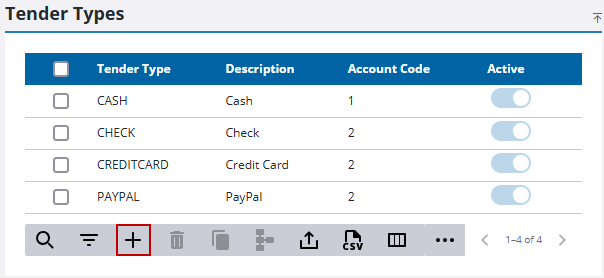
- Enter a 10-character (maximum) code in the Tender Type field.
 IMPORTANT: When creating tender types for Authorize.Net and PayPal, the value entered in the Tender Type field must be AN and PayPal respectively. Any other values entered in the Tender Type field for either of these payment methods will cause the payment methods to fail.
- Enter a brief explanation of the tender type in the Description field.
- In the Account Code field, enter the number or code of the financial account in which this tender type will be processed.
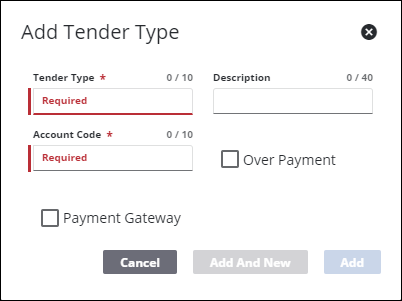
- Select the Over Payment check box to indicate that overpayment is permitted with this tender type. If you leave this check box cleared, it means that overpayment is not allowed for this tender type.
- Select the Registered check box if it will be available to Public Access users after they have logged in.
- Click Add or Add and New to add the tender type and create another one.
NOTE: The Review Config panel provides visibility of where a selected data item (such as a case type, user, status code, or other Trimble Unity Permit item) is being used. See Review Permit Configurations for more information.

