Make a User an Inspector
Many permitting workflows in Trimble Unity Permit require at least one inspection, so it is important to have enough qualified inspectors to keep up with demand.
|
|
 PREREQUISITES:
 IMPORTANT: Unless there is a default inspector listed for a particular discipline, when an inspection is scheduled it is assigned to the inspector with the highest priority who is available at the requested time. If multiple inspections are requested at the same time, the inspections are assigned to the available inspectors in descending order of their priority for the given discipline.
If two inspectors have the same priority for a given discipline, the inspection will be assigned based on the inspectors' user IDs. For example, if one inspector had the user ID of 37 and the other had the user ID of 52, the task would be assigned to the inspector with the user ID of 37.
- From the home page, click Permitting and click Users.
 TIP: You can filter the list of records displayed. See Filter Records for more information.
- Select the user you want to designate as an inspector.
- Select the Inspector check box.
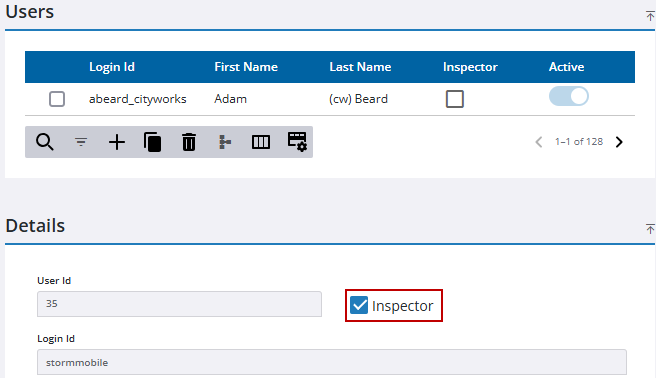
A check mark displays in the Inspector column of the Users panel. After assigning the user as an inspector, configure their profile on the Inspector Setup page. See Inspector Setup for more information.
 NOTE: Changes are automatically saved and verified by a notification at the bottom of the page.

