Home
After you log in, the Home page displays with a list of organization announcements and scheduled events. This centralized page consolidates company announcements and calendar events while ensuring brand consistency and unifying functionality between Trimble Unity Construct and Trimble Unity Field.
The Home page includes the following sections:
- Announcements: The same announcements that are shown in Trimble Unity Construct are also shown on the Home page in Trimble Unity Field for Construct. If none are configured, a default announcement is shown. Rich text formatting, including bullet lists and hyperlinks, is supported in announcements.
- Events: Your calendar events are loaded at both the account level and the project level. Project-level calendar events include the corresponding project ID.
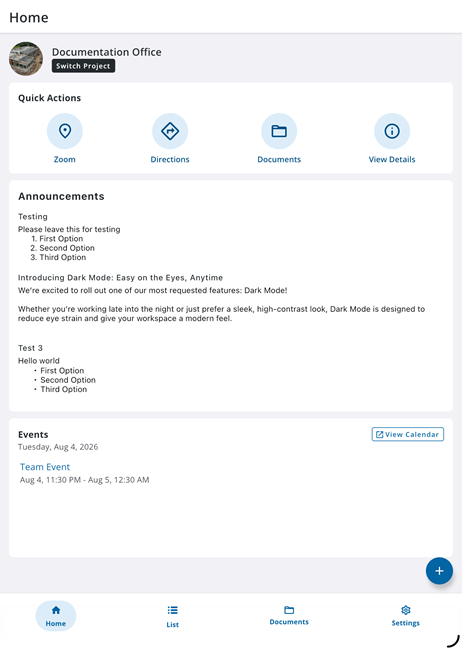
- Quick Actions: The quick actions that can be performed for the project. This section is visible only when a project is selected. It is not visible when All Projects is selected.
- Add: You can create a work activity directly from the Home page.
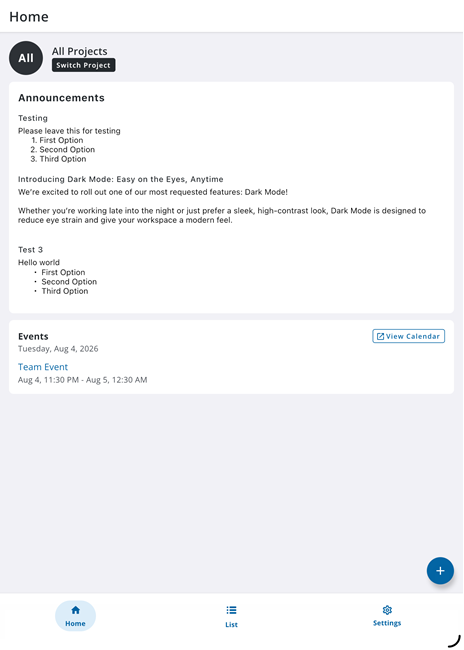
 Switch Projects
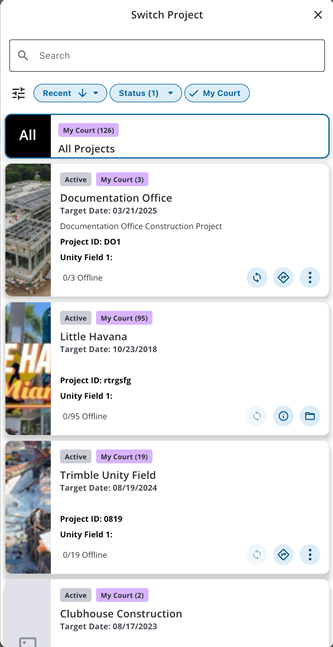
Trimble Unity Field gives you a quick and easy way to switch between the projects that you have access to.
See Projects for more information.
- On the Home page, tap the Switch Project button.
- On the Switch Project page, select a project from the list.
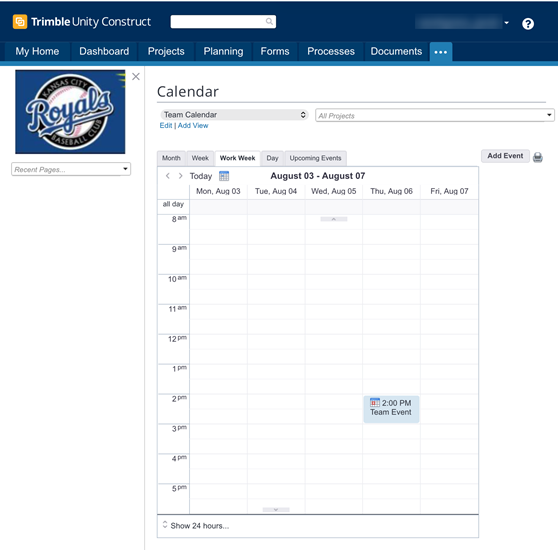
View Calendar Events
You can view your calendar events for the day in the Trimble Unity Construct web application.
- Tap the View Calendar button.
The device's default web browser opens so that you can log in to the Trimble Unity Construct web application and then view the calendar.
Create a Work Activity
You can create a work activity using the Add icon. See Create Location-Based Work Activities for more information.
- Tap the Add icon.

The Select Project panel appears.
- Tap a project to select it.
The Add panel appears.
- Tap the desired work activity to create.
The Create Work activity page appears.
- Enter information to create the work activity.
- Tap Save.
The work activity is created and the Home page appears with the selected project as the current project.
Quick Actions
When a project is selected on the Home page, the Quick Actions section is available for use.
- On the Home page, tap the Switch Project button.
- On the Switch Project page, select a project from the list. The Home page is updated with the selected project.
- One or more of the following quick actions are available:
- Documents: Tap to access a list of all documents associated with the selected project.
- Directions: Tap to get driving directions to the project location.
- View Details: Tap to open the project details page for the selected project.
- Zoom: Tap to zoom to the project location on the map.