Create Location-Based Work Activities
A location-based work activity
 NOTE: The selected work activity type determines which activities you can create or search. For example, selecting the Service Requests work activity type allows you to create new service requests and search existing ones. See View Work Activity Lists and Summary Cards for more information.
When creating a new work activity, the workflow details are loaded only after selecting a specific workflow type. To see any workflow changes made to existing work activities/ processes in Trimble Unity Construct, ensure that you clear all workflow and config data from the offline cache settings before logging into Trimble Unity Field. If you have not loaded that specific activity type or process before, you do not need to clear the data. See App Settings for more information.
Incomplete processes in the Draft state can be synced with Trimble Unity Construct. Incomplete Draft processes are uploaded from Trimble Unity Field to Trimble Unity Construct and downloaded from Trimble Unity Construct to Trimble Unity Field. This allows you to continue working on drafts in Trimble Unity Field or in the Trimble Unity Construct web application before submitting them.
NOTE: If you were offline when you created the work activity draft, ensure that you perform a manual sync by opening the work activity and tapping Sync later when you are back online.
Complete one of the following to create a location-based work activity:
 From the Create Work Activity Panel
You can create a work activity using the Add icon.
- Tap the Add icon.

The Create Work Activity panel appears.
- Tap the desired work activity to create.
- Enter the required details on each section page of the work activity.
- To view a navigation menu with the project name, activity name and section pages for the work activity, tap the Menu icon.
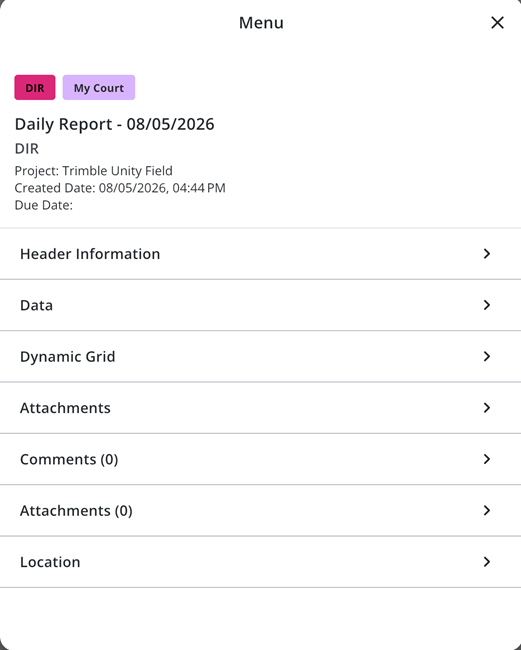
- On the Menu panel, tap a section page to quickly move to it. This menu can be accessed from all sections of the work activity. The project details are shown on the header of the Menu panel for in-progress activities.
- Tap Location to enter any location details. The following options are available from the Location page:
- Capture: Tap to capture the work activity location.
- Map: Tap to select a location on the map.
- Details: Tap to view GNSS metadata details.
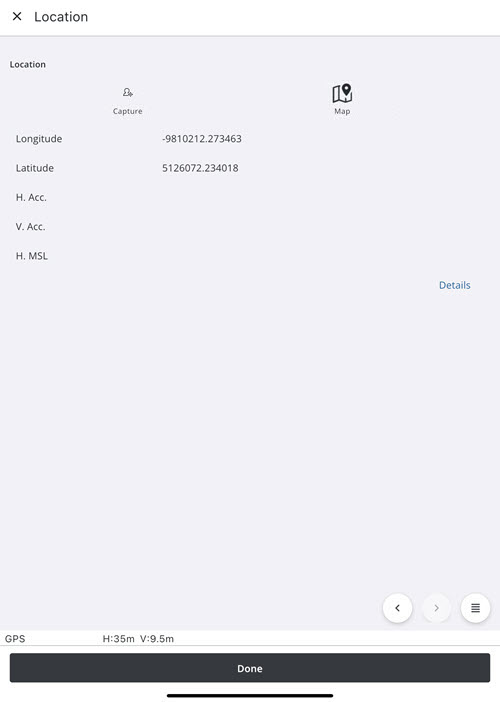
- Tap Done.
- Enter any other desired information.
- Tap Save.
The location-based work activity is created.