View Projects List
When you are signed in to the Trimble Unity Field app, you will be able to view a list of projects that you belong to. The most useful and commonly accessed projects are shown at the top of the list by default. This allows you to quickly access and switch between frequently used projects with ease.
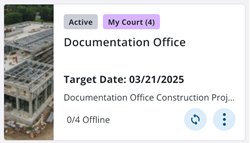
Each card displays the project's details like name, description, status, and target date of the project. Any project images that are set up in Trimble Unity Construct are shown on the project card in the projects list. If there are any work activities in the project that are in your court, the project card also displays the number of work activities assigned to you.
Each project card displays up to three action buttons at once. If there are more than three actions, the third and fourth are shown under the More Actions menu. See View Project Details for more information.
 View the Projects List from the Home Page
- Sign in to the Trimble Unity Field mobile app.
- On the Home page, tap the Switch Project button.
A list of projects that you belong to appears. Active projects in your court are shown by default in the list.
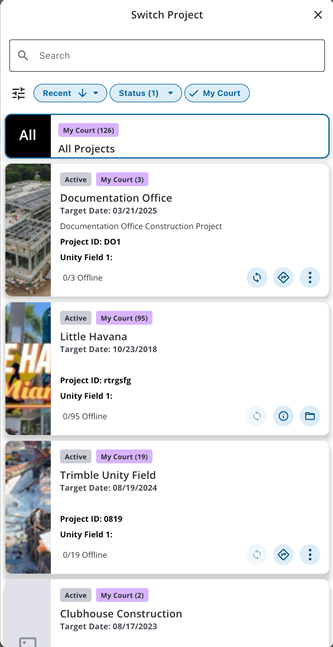
Each card displays the project's details like name, description, status, and target date of the project. Any project images that are set up in Trimble Unity Construct are shown on the project card in the projects list. If there are any work activities in the project that are in your court, the project card also displays the number of work activities assigned to you. See View Project Details for more information.
 NOTE: On the Switch Project page, the project sync button is shown only for projects with 10 or fewer work activity instances in the user’s court. If a project has more than 10 instances, the sync button is not available.
- Tap a project from the list to select it.
View Projects Without Items In Your Court
You can expand the projects list to include even the projects without work activity items assigned to you.
- On the Switch Project page, tap the My Court filter to clear it.
Filter Projects
You can filter projects using one or more filters on the Switch Project page.
- On the Switch Project page, tap the All Filters icon.
- Tap In My Court to toggle the project search to find projects with items in your court or all projects.
- Tap the Sort by button and select any one of the following sorting options:
- Recent: Tap to sort projects by most recent use. Tap the arrow icon beside it to display most recently used projects first or last.
- Date Created: Tap this option to sort projects by creation date. Tap the arrow icon beside it to display most recently created projects first or most recent last.
- Project Name: Tap this option to sort projects by project name. Tap the arrow icon beside it to display projects in alphabetical order going from A to Z or from Z to A.
- Status: Tap this option to sort projects by status. Active projects are shown by default in the list. Tap the arrow icon beside it to display projects by status in alphabetical order going from A to Z or from Z to A. The Status chip appears gray when not applied or when all statuses are applied. When one or more status is applied, the Status chip is blue. The number in parentheses indicates the number of statuses applied.
- Start Date: Tap this option to sort projects by project start date. Tap the arrow icon beside it to display most recently created projects first or most recent last.
- Target Date: Tap this option to sort projects by target date. Tap the arrow icon beside it to display projects with the most recent target date first or most recent last.
- Tap Done to apply the selected sorting option. You can reset any sorting options applied back to the default by tapping Reset.
- Tap the Status button to select one or more status to further narrow down the list of projects. You can tap Select All to select all available project statuses.
- Tap Done to filter by the selected statuses. You can reset any statuses selected back to the default by tapping Reset.
- Tap Apply.
Filter Projects by Status
You can filter projects by one or more project status on the Switch Project page.
- On the Switch Project page, tap the Status button.
- Tap to select one or more status to further narrow down the list of projects. You can tap Select All to select all available project statuses.
- Tap Done to filter by the selected statuses. You can reset any statuses selected back to the default by tapping Reset. The Status chip appears gray when all statuses are applied. When one or more status is applied, the Status chip is blue. The number in parentheses indicates the number of statuses applied.
Sort Projects by Specific Criteria
You can sort projects by specific criteria on the Switch Project page.
- On the Switch Project page, tap the Sort by button.
- Select any one of the following sorting options:
- Recent: Tap to sort projects by most recent use. Tap the arrow icon beside it to display most recently used projects first or last.
- Date Created: Tap this option to sort projects by creation date. Tap the arrow icon beside it to display most recently created projects first or most recent last.
- Project Name: Tap this option to sort projects by project name. Tap the arrow icon beside it to display projects in alphabetical order going from A to Z or from Z to A.
- Status: Tap this option to sort projects by status. Tap the arrow icon beside it to display projects by status in alphabetical order going from A to Z or from Z to A.
- Start Date: Tap this option to sort projects by project start date. Tap the arrow icon beside it to display most recently created projects first or most recent last.
- Target Date: Tap this option to sort projects by target date. Tap the arrow icon beside it to display projects with the most recent target date first or most recent last.
- Tap Done to apply the selected sorting option. You can reset any sorting options applied back to the default by tapping Reset.
Search for a Project
If you belong to multiple projects, you can search the list of projects to find a specific one. You can also search projects using custom project fields that are defined as searchable in Trimble Unity Construct.
Matching search criteria are highlighted on project cards in real-time and you can then tap any card to access the project.
- On the Switch Project page, tap the search bar.
- Type in the project name.
- From the search results, tap the project card to view its details.
View All Activities in My Court Across All Projects
The All Projects card on the Switch Project page shows you a consolidated list of activities in your court across all projects.
See View Work Activity Lists and Summary Cards for more details.
- On the Switch Project page, tap the All Projects card.
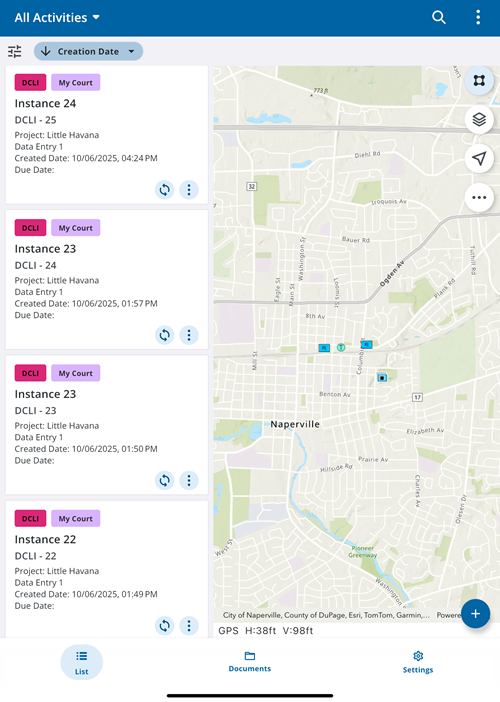
The All Activities page is shown with a list of all activities in your court across all the projects you have access to. Tap an activity card to view the work activity details page.