Dynamic Commitment Line Items
Dynamic commitment line items are supported for contract processes. Unit cost and lump sum commitment types are supported.
You can add and modify dynamic commitment line items for contracts, including quantities, location, and line item type. Dynamic commitment line item edits can be saved and any additions or changes are synced back to Trimble Unity Construct.
You can also take action on dynamic commitment line item activities. See Take Action to Progress the Workflow for more information.
 NOTE: Any commitment line items that are not in your court are view-only and cannot be modified.
 View Dynamic Commitment Line Items
You can view existing dynamic commitment line items under a dynamic commitment process instance or work activity.
- Tap the work activity to open it.
- Tap the Line Items section to view a list of existing dynamic commitment line items.
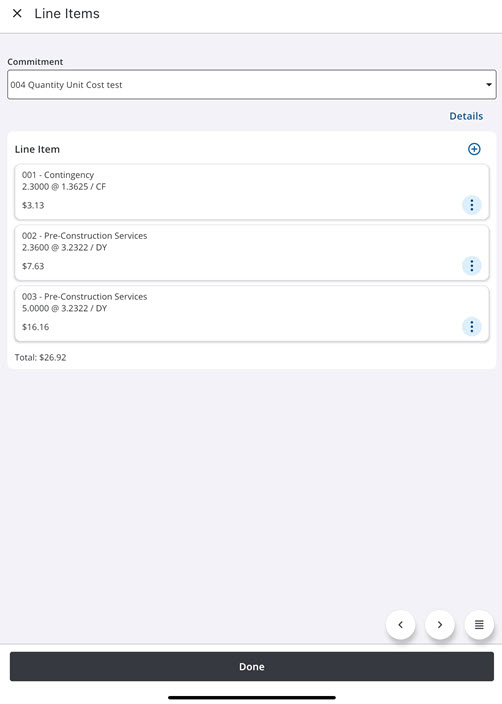
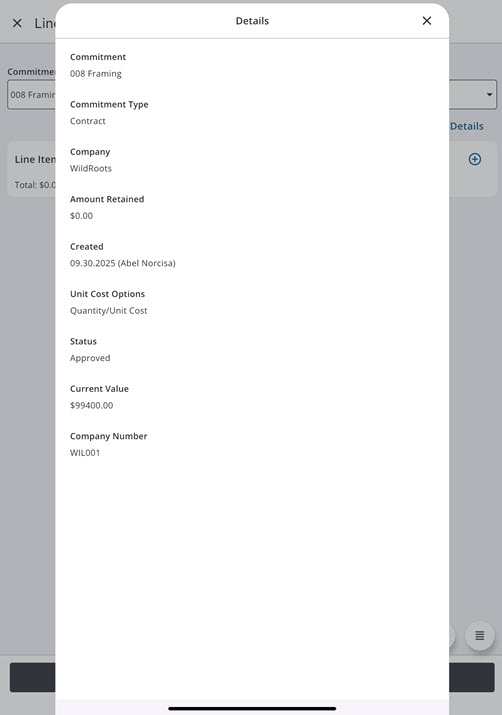
- Tap Details to view the commitment details.
Add a Dynamic Commitment Line Item
You can add a dynamic commitment line item to a new process instance or to an existing one.
- Tap the work activity to open it.
- Tap the Line Items section.
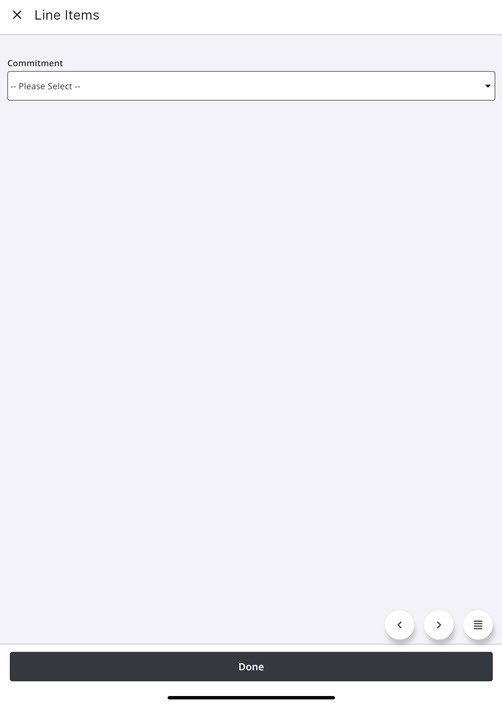
- Select a commitment from the Commitment drop-down list.
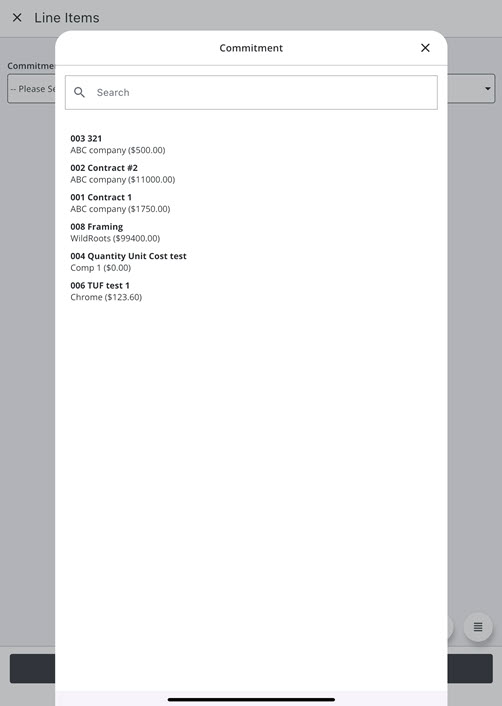
- Tap a commitment from the list. You can also search for a commitment in the Search field at the top of the panel.
The Line Item section appears.
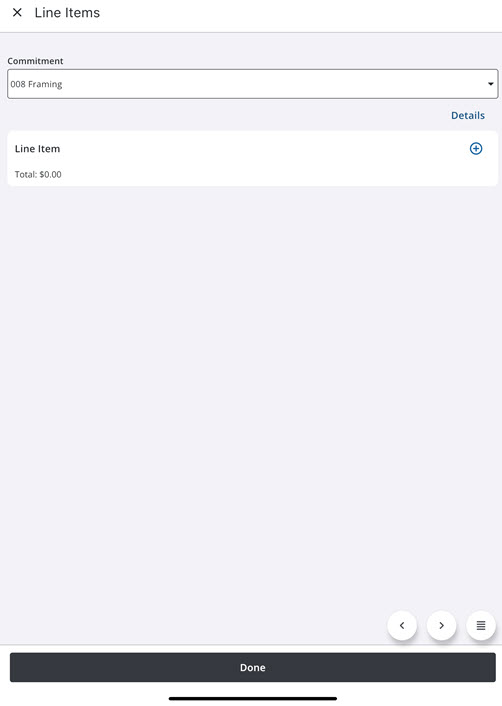
- Tap the Add icon in the Line Item section. The Add Line Item panel appears.
- Enter information into the desired fields for the commitment line item.
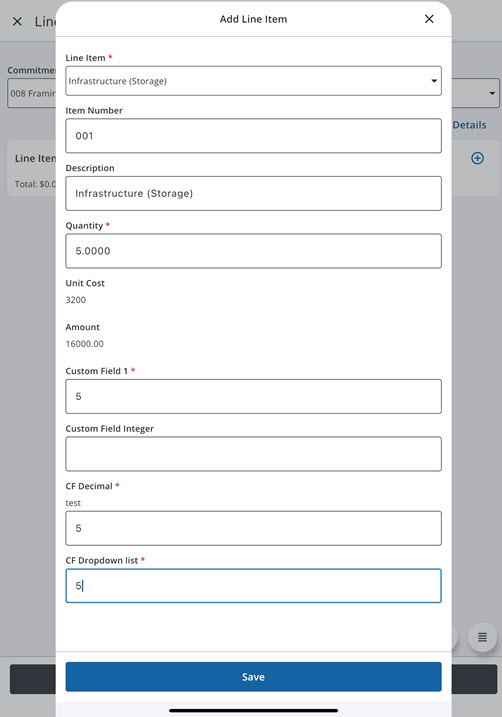
- Tap Save.
- Tap Done.
- Tap Save.
Edit a Dynamic Commitment Line Item
When editing an existing Dynamic Commitment line item, users can change the line item type.
- Tap the work activity to open it.
- Tap the Line Items section.
- Tap the More icon beside the dynamic commitment line item to access the More Actions menu.
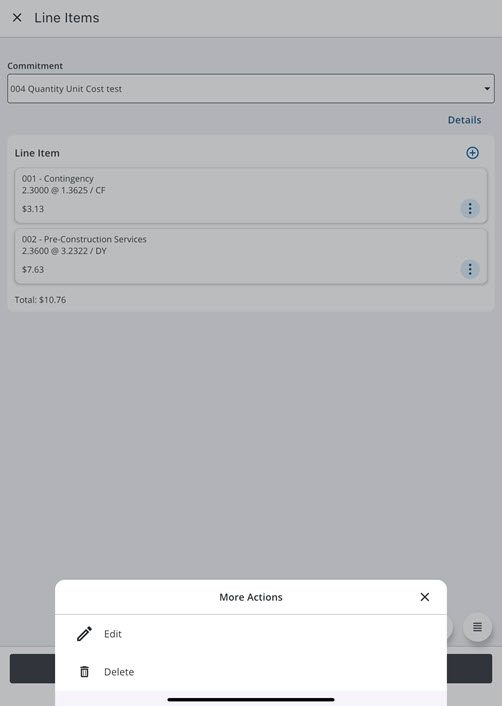
- Tap Edit. The Edit Line Item panel appears.
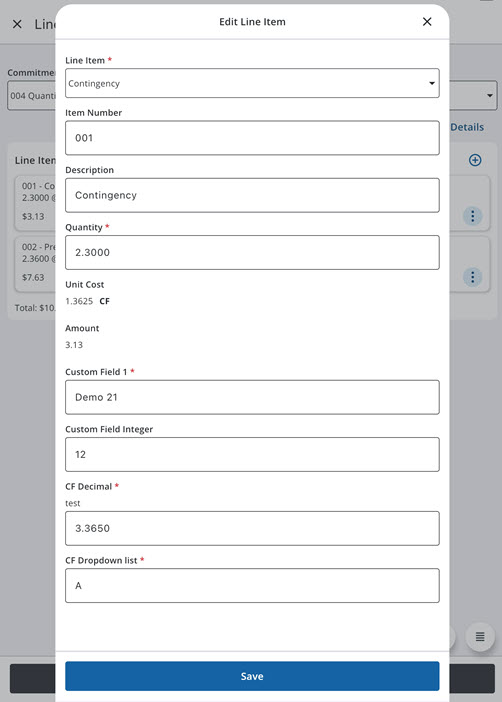
- Edit the commitment line item details as needed.
- Tap Save.
- Tap Done.
- Tap Save.
Delete a Dynamic Commitment Line Item
You can delete a dynamic commitment line item.
- Tap the work activity to open it.
- Tap the Line Items section.
- Tap the More icon beside the dynamic commitment line item to access the More Actions menu.
- Tap Delete. You will be asked to confirm the deletion.
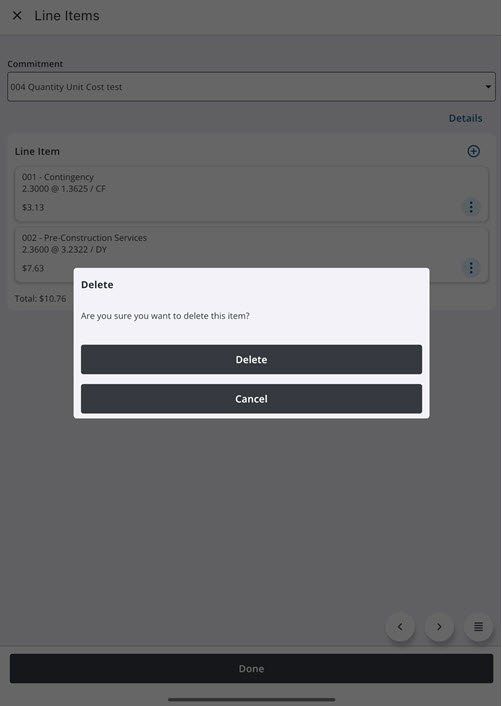
- Tap Delete to confirm.
- Tap Done.
- Tap Save.