Add Attachments
You can add attachments from your device via the Attachments field or by tapping the Attach icon
Photos taken in the app display a text-based timestamp by default, allowing you to view the date and time the photo was taken to better track construction progress, fulfill legal requirements, create time-lapse sequences, and more. The timestamp remains visible even if you mark up the photo.
Photos taken within Trimble Unity Field as part of an activity are added as an attachment and saved to the local device's camera roll when the Copy photos to device option is enabled in Settings.
To manage these settings, see Media Attachments in the App Settings topic.
The following steps follow the workflow of tapping the Attach icon.
 NOTE: Any attachments added to a local work activity draft are discarded if the local work activity draft is discarded.
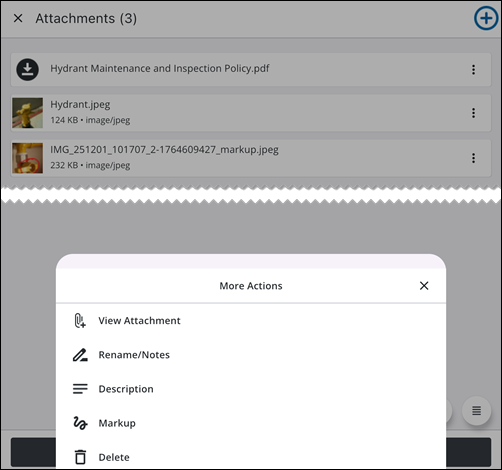
 Attach a Photo from the Camera
You can attach a photo taken from your device's camera to a work activity.
- Open a work activity.
- Tap Attach.
- Tap Photo.
A message appears informing you that Trimble Unity Field requires access to continue.
- Tap Continue and accept any other device permissions to allow access.
- Take a photo.
NOTE: If you are using the Windows platform, take a photo and then tap Back to return to Trimble Unity Field.
- Markup: Tap to mark up the attachment.
- Rename: Tap to rename the attachment.
- Description: Tap to add a description for the attachment.
- Back: Tap to return to the Attachments screen without saving.
- Tap Save.
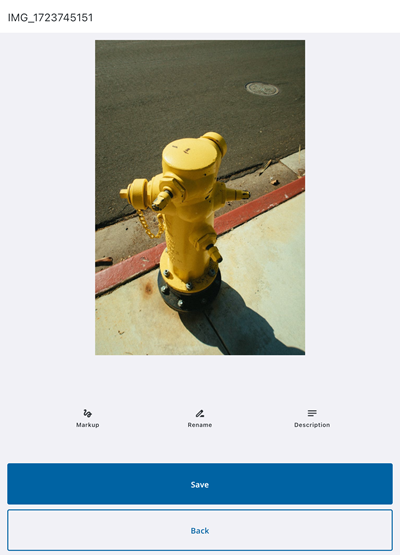
Attach One or More Photos from the Camera Roll
You can attach one or more photos from your device's camera roll to a work activity.
Attach a Photo
- Open a work activity.
- Tap Attach.
- Tap Camera Roll.
A message appears informing you that Trimble Unity Field requires access to continue.
- Tap Continue to accept any other device permissions to allow access.
- Select one photo to add from your device's camera roll.
- Tap Add.
- Markup: Tap to mark up the attachment.
- Rename: Tap to rename the attachment.
- Description: Tap to add a description for the attachment.
- Back: Tap to return to the Attachments screen without saving.
- Tap Save.
The photo is added to the work activity.
Attach Multiple Photos
- Open a work activity.
- Tap Attach.
- Tap Camera Roll.
A message appears informing you that Trimble Unity Field requires access to continue.
- Tap Continue to accept any other device permissions to allow access.
- Select multiple photos to add from your device's camera roll.
- Tap Add.
The photos are added to the work activity.
Take and Attach Videos
Take a Video
You can take a video and attach it to a work activity.
- Open a work activity.
- Tap Attach.
- Tap Video.
- Tap OK to provide access to your device's camera and microphone.
- Take a video.
- Rename: Tap to rename the attachment.
- Description: Tap to add a description for the attachment.
- Back: Tap to return to the Attachments screen without saving.
- Tap Save.
Attach One or Multiple Videos
- Open a work activity.
- Tap Attach.
- Tap Camera Roll.
A message appears informing you that Trimble Unity Field requires access to continue.
- Tap Continue to accept any other device permissions to allow access.
- Select one or more videos to add from your device's camera roll.
- Tap Add.
The videos are added to the work activity.
Attach Documents
You can attach a document from your device to a work activity.
- Open a work activity.
- Tap Attach.
- Tap Document.
- Select a document from your device's library.
The document is added.
Attach Markup Map Capture
You can attach a map capture to a work activity.
- Open a work activity.
- Tap Attach.
- Tap Map Capture.
- Navigate by zooming in or out to your desired capture zone.
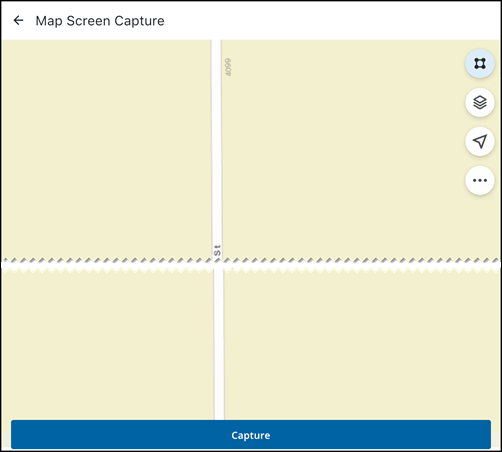
- Tap Capture.
- Markup: Tap to mark up the attachment.
- Rename: Tap to rename the attachment.
- Description: Tap to add a description for the attachment.
- Back: Tap to return to the Attachments screen without saving.
- Tap Save.
View and Manage Attachments
You can view and manage existing attachments.
From a Work Activity
-
- Tap Attachments to view existing attachments.
- Tap an attachment to download it.
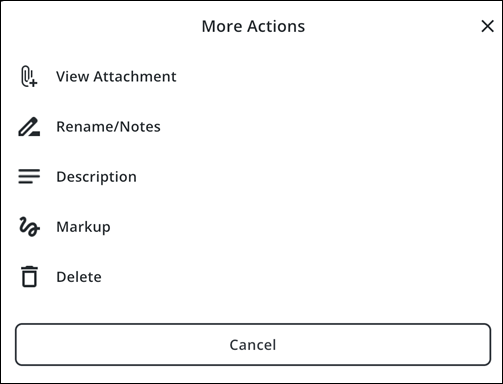
- Tap the More Actions icon.
The More Actions menu opens and the following options are available:
- View Attachment: Tap to view the attachment.
- Done: Tap the attachment and tap Done to exit viewing.
- Rename/Notes: Tap to rename the attachment or add a note.
- X icon: Tap to remove the current attachment name.
- Tap the field to enter a new name or add a note.
- Rename: Tap to save the new attachment name.
- Description: Tap to add a description.
- Tap the field to enter a description.
- Update: Tap to update the description.
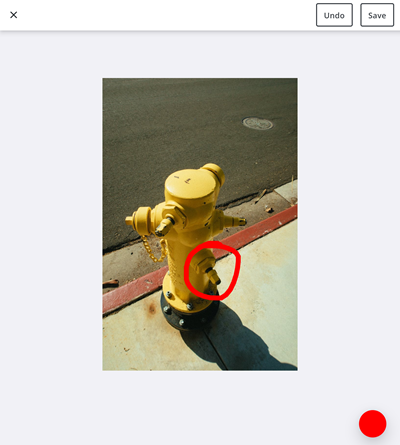
- Markup: Tap to use markup tools to mark the image with annotations.
- Color picker icon: Tap to change the markup color.
- Draw on the attachment to mark it up.
- Undo: Tap to undo the markup.
- Save: Tap to save the markup.
- Delete: Tap to delete the attachment.
From Asset Details
- Open the Asset Details page. See Asset Details for more information.
- Tap Attachments to view existing attachments.
- Tap the Download icon to download the attachment.
- Tap the attachment to view it.
Markup an Attachment
You can markup photos and attachments directly through the app.
- Open a work activity.
- Tap Attach.
- Tap Photo
- Take a photo.
- Tap Markup.
- Tap the color picker to change the markup color.
- Mark up the attachment.
- Tap Undo to undo a markup.
- When all markups are done, tap Save.
Delete an Attachment
You can delete an attachment uploaded to a work activity.
- Open a work activity.
- Tap Attachments.
- Select an attachment.
- Tap the More icon.
- Tap Delete.
The attachment is deleted.

