Associate an Asset to a Form
If the associated form includes an Asset field, you can associate one or more assets with the form, zoom to those assets on the map, and remove associations as needed.
On the form, the Asset field shows a badge with the number of associated assets. If the field is required, the field label includes an asterisk.
 NOTE: Associating assets on a smart form is separate from assets linked on the work activity Associated Assets page. Selections on the Asset field store associations on the form only.
 Associate an Asset to a Form
When you encounter an Asset field type in a form, you can select an asset from the map to populate the field, tying the asset attributes and geometry to the form.
- Open the work activity and tap Associated Forms.
- Open the form that includes the Asset field.
- Tap Asset.
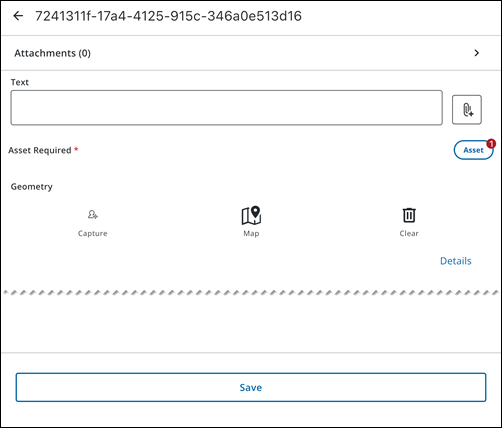
The Asset page opens. The title shows the field name and the number of associated assets in parentheses.
- Tap the Add icon.
The Select Assets map opens. You can search for assets, scan a barcode, or select assets on the map. You can select one or more assets. See Select Assets on the Map for more information.
- Tap Add to add the assets and return to the Asset page.
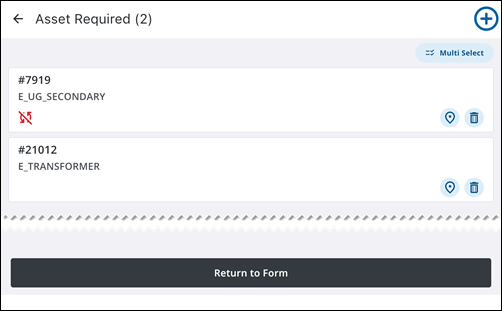
Each associated asset appears as a card showing the display value and feature type.
- Multi Select: Tap to select multiple assets.
- Zoom on Map: Tap to zoom to all selected assets on the map.
- Remove: Tap to remove all selected assets.
- Deselect All: Tap to deselect all selected assets.
- X icon: Tap to exit the multi-select view.
- Map icon: Tap to view the asset on the map.
- Delete icon: Tap to delete the asset from the form.
Tap Return to Form when you are finished. The Asset field updates to show the new count.
- Tap Save to save the form.
The form is updated.

