Field Validation
Field validation is a feature configured by your administrator in Admin that ensures the data entered into a work activity field meets specific, pre-defined rules or conditions. This is distinct from a standard required field, which checks if a field has any input.
Field Validation checks can be applied to service requests, work orders, and inspection templates and are validated when a work activity is updated.
 NOTE: See Field Validation in the Admin Guide for Trimble Unity Maintain and Trimble Unity Permit for more information on how to configure a work activity template with field validation conditions.
|
When configuring Field Validation Events for work activity templates used in the Trimble Unity Field app:
|
 Field Validation Experience
When entering data into a configured work activity, the app provides real-time feedback to ensure the entered values comply with the configured rules.
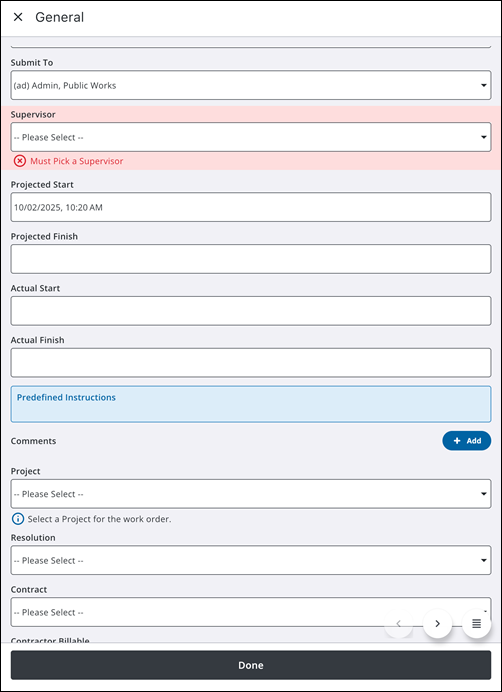
If you enter an invalid value, the corresponding field validation message displays below the respective field.
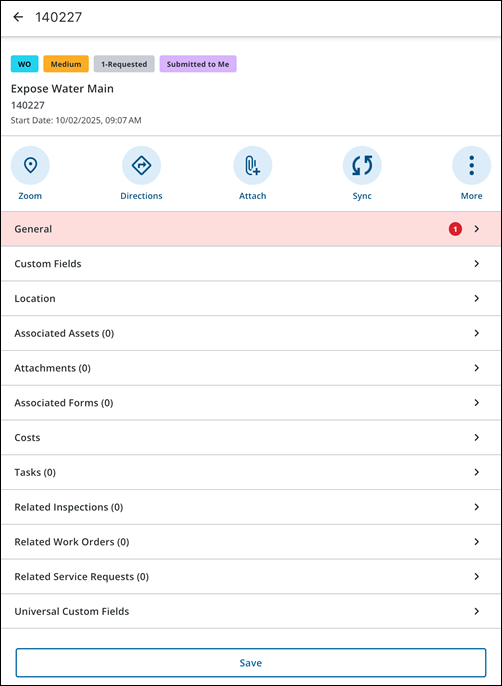
The work activity details page highlights any pages containing fields that have validation messages, displaying a number indicating the count of fields with validation issues.
NOTE: If your administrator has configured field validation but it is not visible in the app, go to Settings > Sync and tap Sync to manually perform a Configuration Sync. This will download the latest field validation configurations. See Troubleshooting Issues for more information.
Validation Message Types
If an invalid value is entered into a work activity field configured for field validation, an information, warning, or error message appears. The type of message determines whether you are allowed to progress the work activity.
Information
The information response message type displays a message outlining the configured information.
An information message does not impede the progress of the work activity.

Warning
The warning response message type displays a message outlining the configured warning.
A warning message does not impede the progress of the work activity.

Error
The error response message type displays a message outlining the configured error.
An error warning message does impede the progress of the work activity.
 IMPORTANT: An error message blocks further progression of the work activity until the field value validation criteria is met. You can save a local draft of the work activity, but you cannot sync the work activity until the validation is corrected.

Supported Functions for Field Validation
The following functions are supported:
- ActualFinishDate
- AbsoluteValueDecimal
- AbsoluteValueFloat
- AbsoluteValueInteger
- ArrayCount
- ArrayLength
- CustomFieldCategoryId (Android only)
- DateCancelled
- DateClosed
- DateSubmitTo
- DecimalNullDefault
- FloatNullDefault
- HasChildInspections
- HasChildServiceRequests
- HasChildWorkOrders
- HasComments
- HasLinkedInspections
- HasLinkedServiceRequests
- HasLinkedWorkOrders
- InspectionDate
- IntegerNullDefault
- NumberCeiling
- NumberFloor
- ProjectedFinishDate
- ProjectedStartDate
- RoundDecimal
- RoundFloat
- StringContains
- StringEndSlice
- StringEndsWith
- StringLength
- StringNullDefault
- StringStartSlice
- StringStartsWith
- StringToLower
- StringToUpper
Unsupported Functions for Field Validation
The following functions are not supported:
- AptNum
- Cancel
- CancelReason
- CancelledBySid
- ClosedBySid
- ConditionRating
- ConditionScore
- ContractWOId
- CreatedByCycle
- CustomFieldCategoryId (iOS, Windows)
- Date Functions
- DomainId
- Effort
- EntityType
- EntitySid
- EntityUid
- FeatureType
- FeatureUid
- ForemanRecommendations
- HasParentInspections
- HasParentServiceRequests
- HasParentWorkOrders
- InitiatedByApp
- LaborCost
- Landmark
- MapPage
- ObservationSummary
- ParentInspectionId
- ParentServiceReqId
- ParentWorkorderId
- SubmitToCrewId
- TemplateId
- Zip

