Define Settings
You can define settings, such as enable tooltip text and use the snapping controls to snap new or existing features to points on the map.
 TIP: Make sure that the layer you're editing is visible in the Legend so you can view the assets on the map. See Make a Layer Visible for more information.
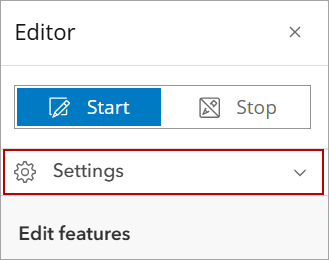
- Click Editor in the map toolbar.
- Click Start.
From here you can edit existing features or add new features on the map. See View and Edit Attributes or Add a New Asset to the Map for more information.
- Click Settings.
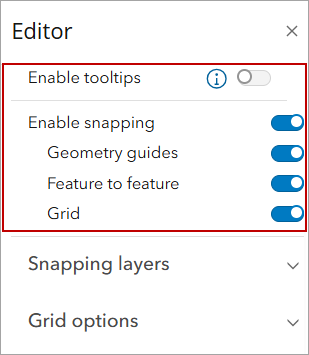
- Select Enable tooltips to enable tooltip text.
- Select Enable snapping and then what you want to snap to:
- Geometry guides: This allows newly added or edited features to snap to geometry guidelines.
- Feature to feature: This allows a newly added feature to snap to an existing feature.
- Grid: A square grid overlay is added to the map; this allows newly added or edited features to snap to the grid lines.
 Snapping layers
The Snapping layers drop-down list allows you to select the layer you want the snapping controls to be applied to.
TIP: Use the Search layers field to filter the list of layers.
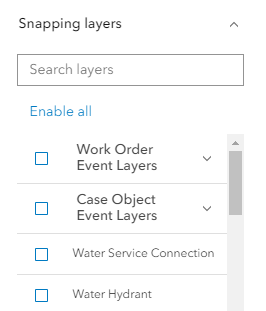
 NOTE: Click Enable all to select all layers. Click Disable all to clear all selected layers.
Grid options
The Grid options drop-down list allows further configuration of the grid.
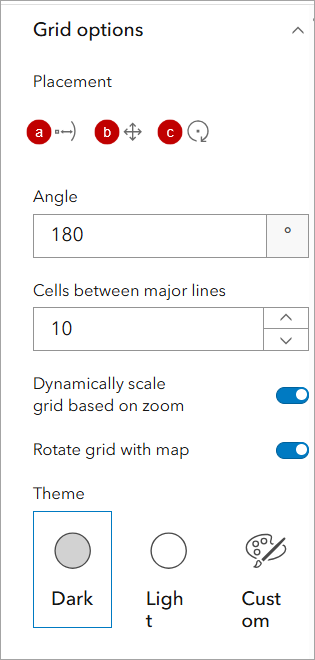
- Placement: Reposition or rotate the grid using the following options.
- Place: Move and rotate the grid.
- Move: Move the grid without changing it's rotation.
- Rotate: Adjust the grid's rotation without moving it's location.
- Angle: Sets the grid's rotation in degrees. Only whole numbers from 0 to 359 are valid, out-of-range inputs are automatically corrected.
- Cells between major lines: Set the number of squares that separate major grid lines. Major lines are darker for easier visual reference. The default value is 5, with accepted values ranging from 1 to 15.
- Dynamically scale grid based on zoom: Turn on to automatically update the spacing of the grid when the map is zoomed in or out.
- Rotate grid with map: Turn on to automatically rotate the grid when the map is rotated.
- Theme: The color of the grid lines can be set using the following options:
- Dark: Major lines are dark gray, minor lines are light gray.
- Light: Both major and minor lines appear as light gray.
- Custom: Allows you to define the exact color for both major and minor lines. You can pick a color directly, or input its hex, RGB, or HSV code. Additionally, a transparency slider lets you fine-tune the grid lines' opacity.
- Click Settings to close the panel.