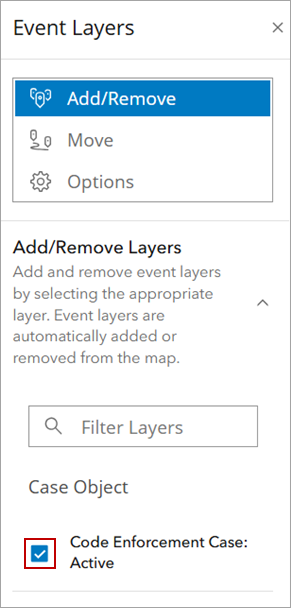
View Event Layers on the Map
Event layers are displayed on the map with the image or marker symbols assigned to them when they are selected on the Event Layers map tool.
- Open the map.
- Click Event Layers in the map toolbar.
- Click Add/Remove.
Event layers you have been given access to appear in the list. You can view any event layers in the domain by enabling Show domain event layers. See Enable or Disable Options for more information.
- Select any event layers in the list you want to display on the map. When an event layer is selected, the corresponding image or marker symbols assigned to it appears on the map and it appears in the Legend map tool. This allows the event layer and related activities to be marked as selectable like assets. When an event layer is cleared, the image or marker symbols assigned to it disappear from the map and the Legend map tool.
 TIP: Use the Filter Layers field to filter the list and find specific event layers.